
How to send a landlord a leasing activity report without building a deck
Tristen PaloriOct 2, 20268 min read

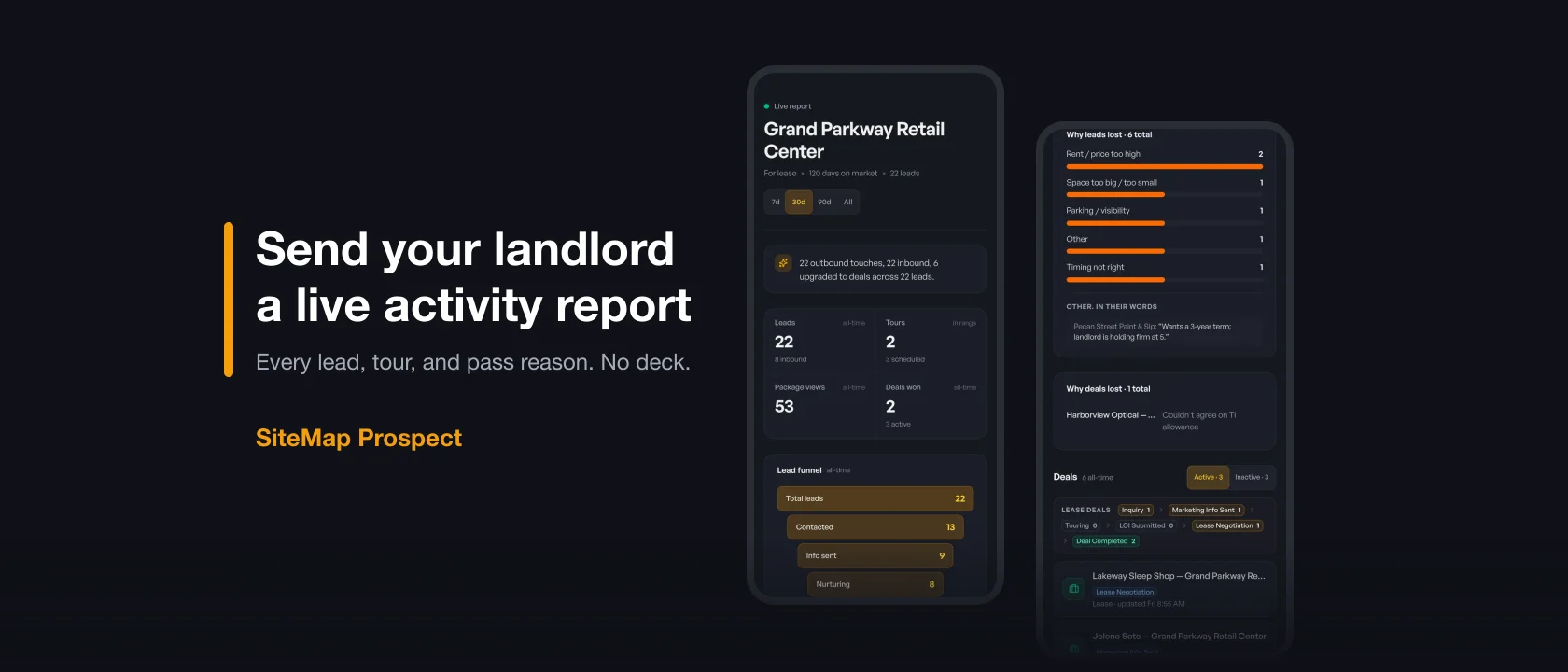
The short answer: a good leasing activity report answers four questions for the owner: how many prospects you reached, where the interest came from, who toured, and why the ones who passed said no. If you log every call, email, and tour against the listing as it happens, the report builds itself. In SiteMap Prospect, open the listing, go to the Listing Activity tab, and click Share live report to send the landlord a read-only link that stays current, or a PDF snapshot of today.
Most listing brokers know the Sunday night routine. Pull call notes from three places, count tours from your calendar, guess at the inbound numbers, and paste it all into a deck the owner skims for thirty seconds. This guide is about replacing that with a report you never have to build.
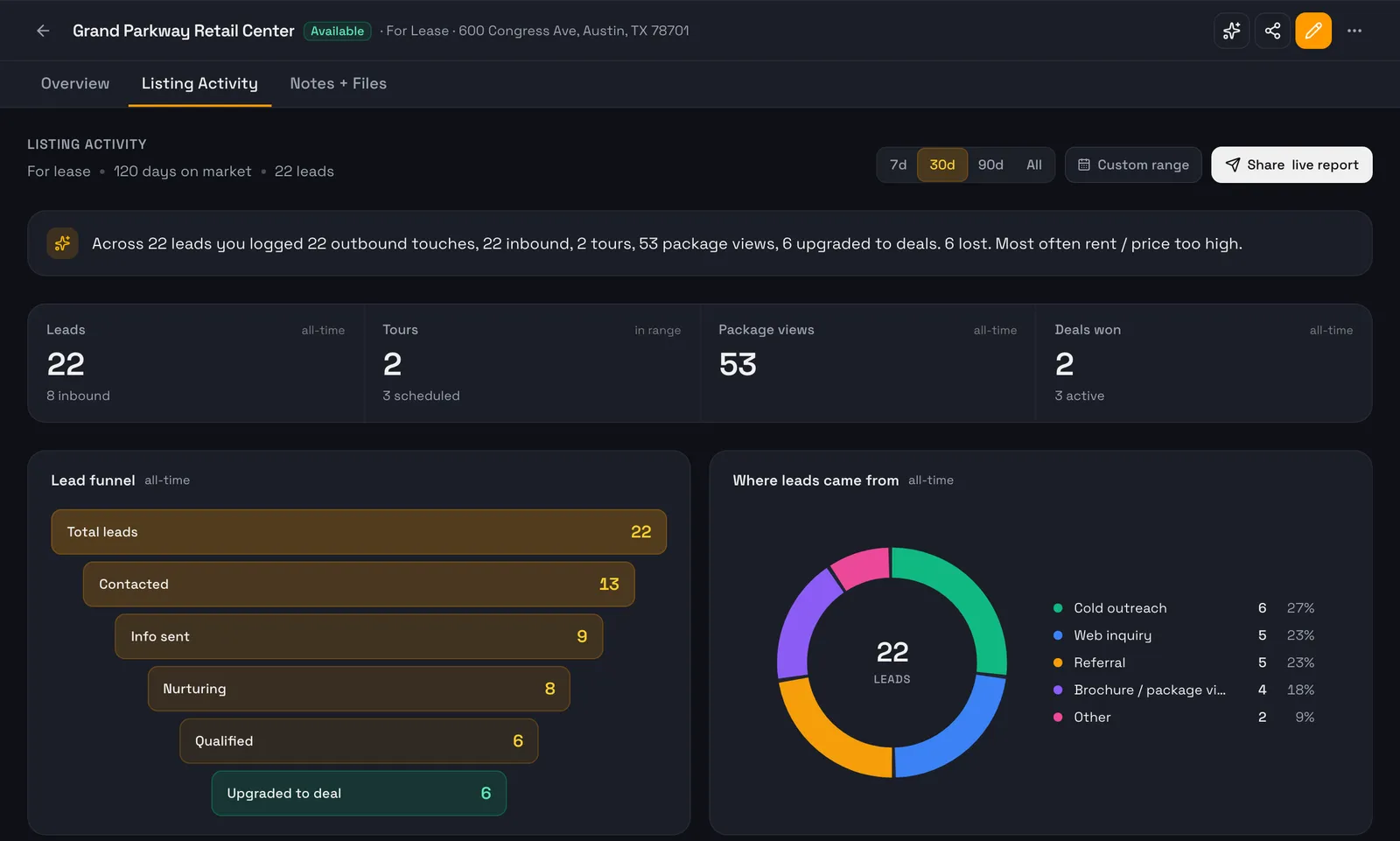
Owners don't want a list of every call. They want to know the work is happening and what the market is saying back. A useful report covers:
That last one matters most. "Six of the eleven tenants who passed said the rent was too high" is a much easier conversation than "the market is slow."
Because the activity lives in your phone, your inbox, your calendar, and your memory, and the report has to pull it all back together. Here's how the two approaches compare:
| Build the report by hand | Live report in SiteMap Prospect | |
|---|---|---|
| Lead count | Counted from your sent folder and call log | Every contact tagged to the listing, split inbound and outbound |
| Activity | Rebuilt from memory the night before | Charted by week from logged calls, emails, texts, and tours |
| Lead sources | Usually skipped | A breakdown by source, editable per lead |
| Why tenants passed | Anecdotes, if you remember them | A required reason every time you pass on a lead |
| Delivery | A deck or PDF that's stale the next day | A read-only link that stays current, plus a PDF when they want one |
| Your time | An afternoon a week | About 30 seconds to share |
The report only knows what you tag to the listing, so this is the habit that makes it work.
A lead is marked inbound or outbound by its first touch on the listing. If a sign call got logged as outbound by mistake, click the direction on the lead row to flip it. You can also set each lead's Source (Cold outreach, Brochure / package view, Web inquiry, Sign call, Referral, or Other) so the "where leads came from" chart tells the truth.
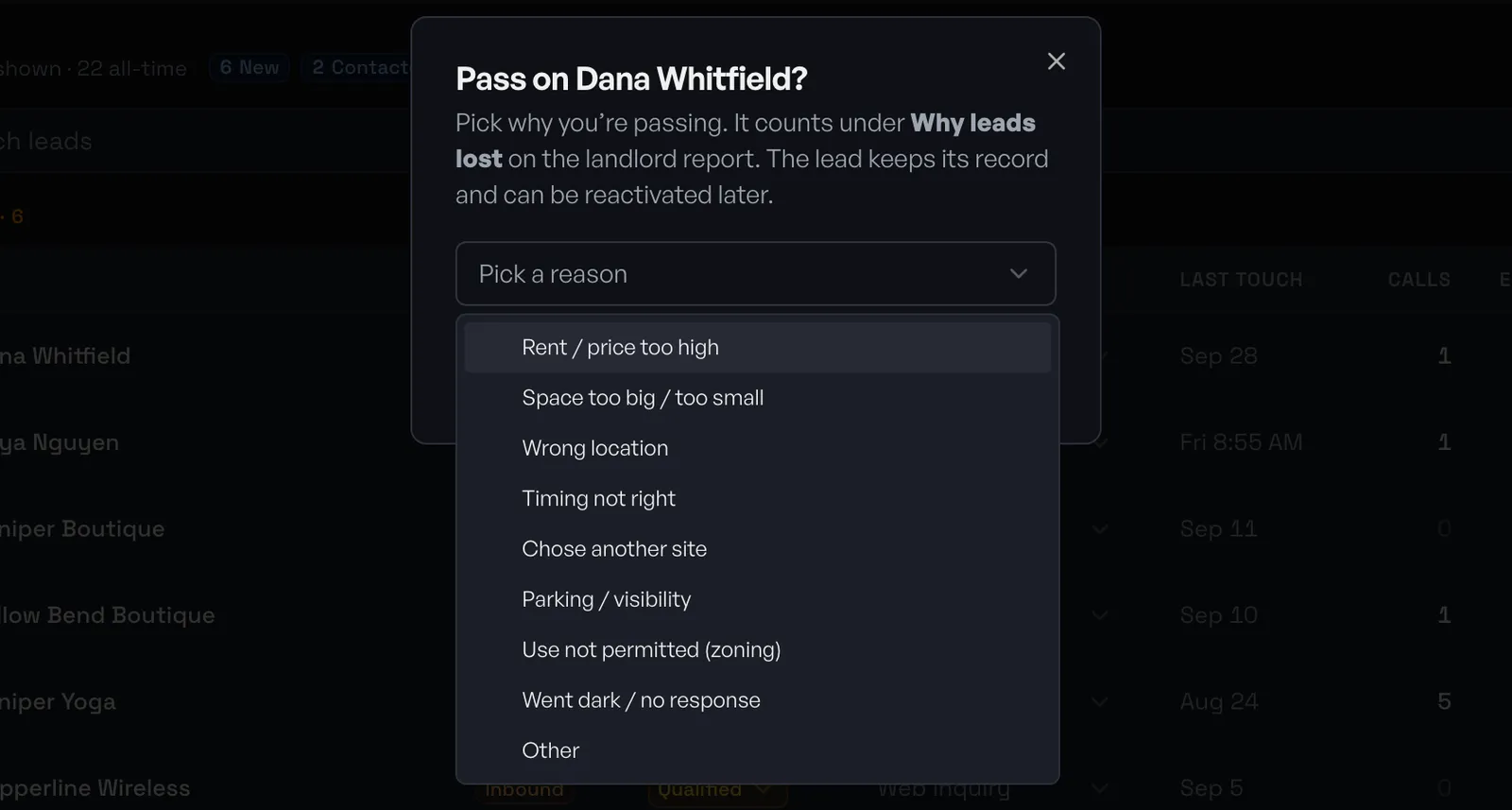
When a prospect says no, don't just let them go quiet. Open the listing's Listing Activity tab, find the lead in the Leads list, and click Pass. Pick a reason:
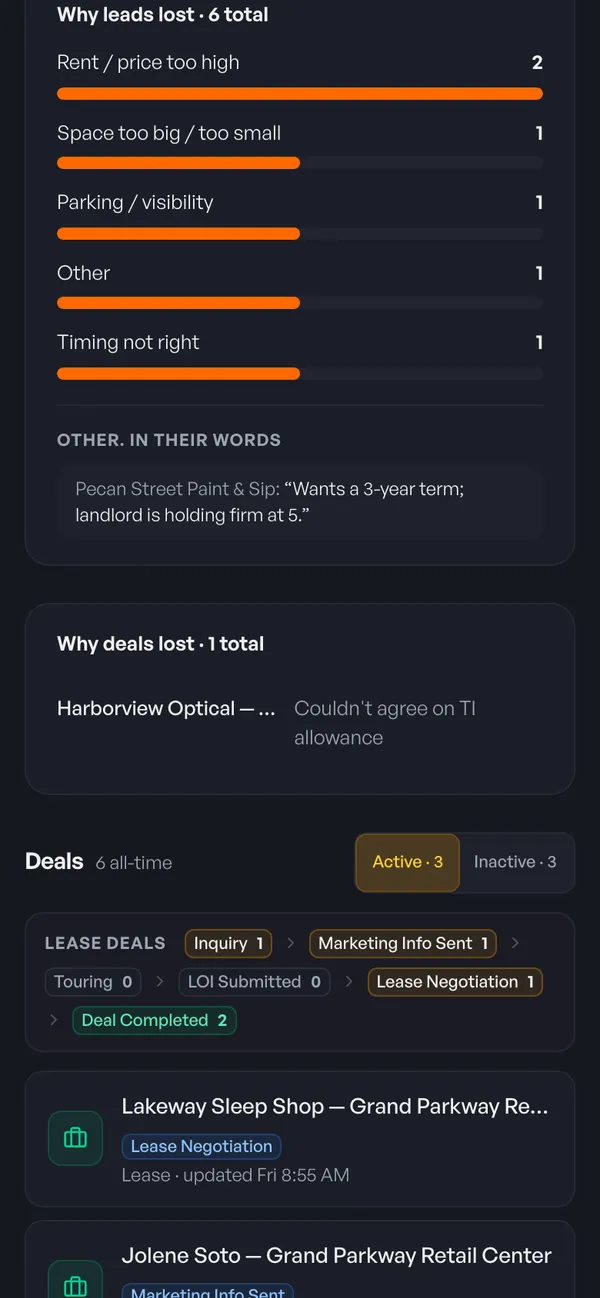
The reason is required, and it shows up in the Why leads lost panel on the report. The lead keeps its full history, and you can click Reactivate if they come back.
When a lead gets serious, click Upgrade to Deal. The deal lands on your team's Lease Deals or Sale Deals board, and the report counts it under deals instead of leads. If the deal is later marked lost, the lost reason you enter shows up under Why deals lost.
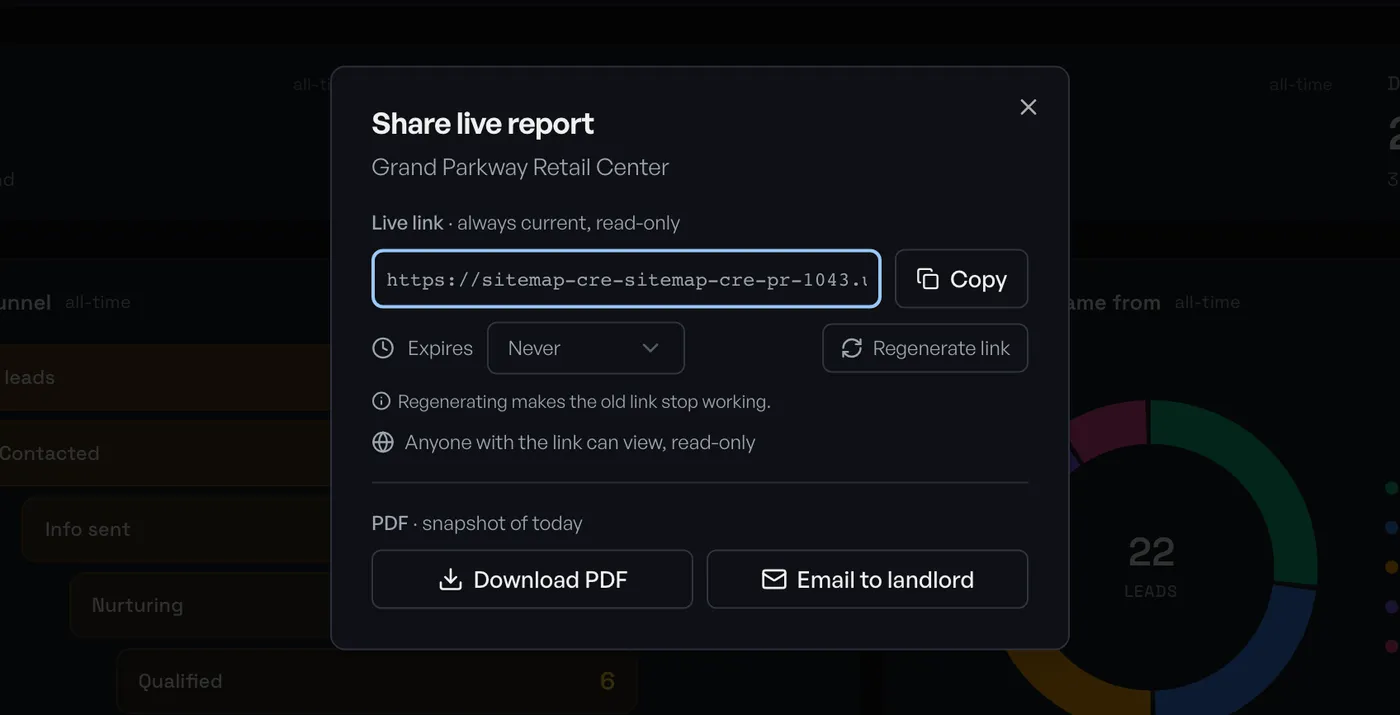
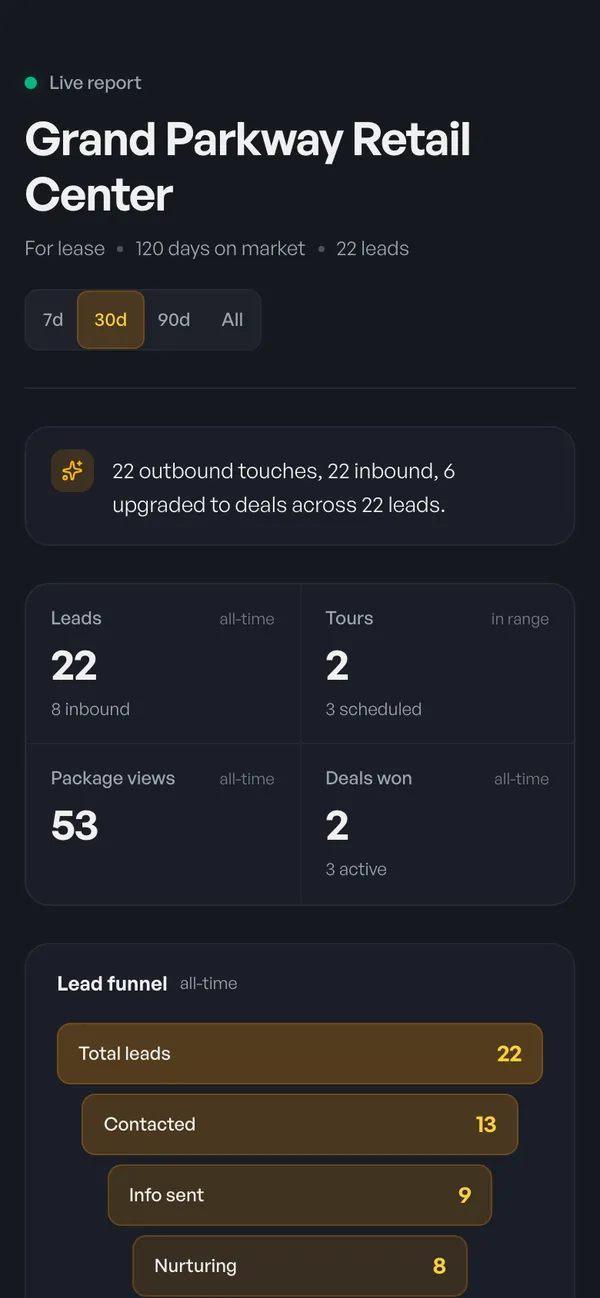
The link is read-only. The landlord sees the same numbers you do (leads, tours, package views, deals won, the lead funnel, sources, activity over time, why leads passed, and the leads list) without any of your editing controls. They can switch between 7, 30, and 90 days or all time on their own. Every time they open it, it shows the current numbers, so you send it once and it stays current for the rest of the listing.
If a link ends up somewhere it shouldn't, click Regenerate link. The old link stops working right away.
See Listing Reports and Lead & Prospect Tracking for more on how this works.
Weekly while the space is actively marketed is common, and monthly once things settle. With a live link, the frequency question mostly goes away: the owner can check whenever they want, and your weekly call becomes a conversation about what the numbers mean.
No. Anyone with the link can view it, read-only. They can't edit anything or see the rest of your CRM.
Yes. Set an expiration when you share it, or click Regenerate link to turn off the old one immediately. A landlord who opens an expired link sees a note to ask you for an updated one.
Any contact or company with at least one activity tagged to the listing. Deals don't inflate the numbers on their own; only touches you tag to the listing count.
Collaborators on the listing can open the Listing Activity tab and see the same numbers. Only the listing's owner can click Share live report.
The owner update shouldn't be a weekly project. Tag the work as you do it, pass with a reason, and let the report do the summarizing.
For the prospecting side of filling a vacancy, read How to find tenants for a vacant commercial space. Ready to try it on your next listing? See SiteMap Prospect, check pricing, or start a free trial.
Start a 30-day free trial and run the whole playbook inside SiteMap.