
How to follow up with prospects you haven't contacted in months
Tristen PaloriOct 23, 20269 min read

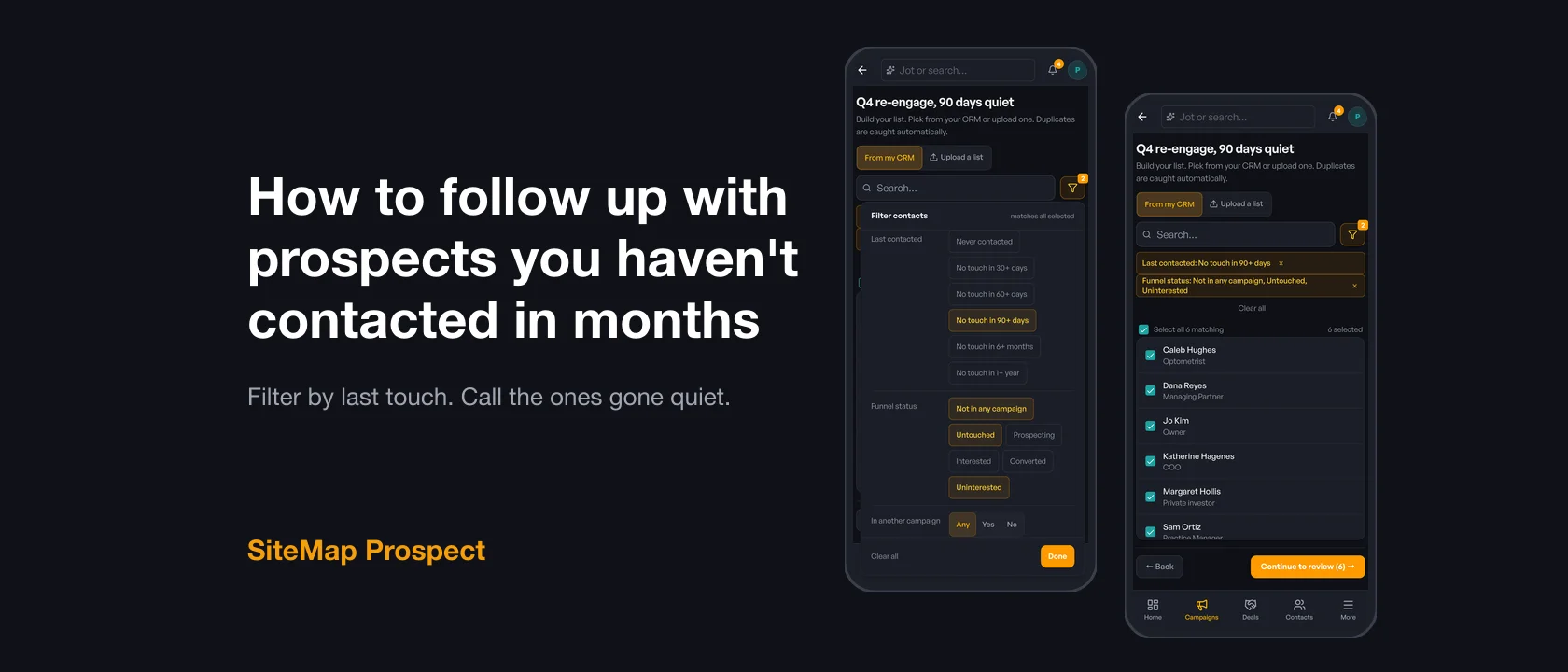
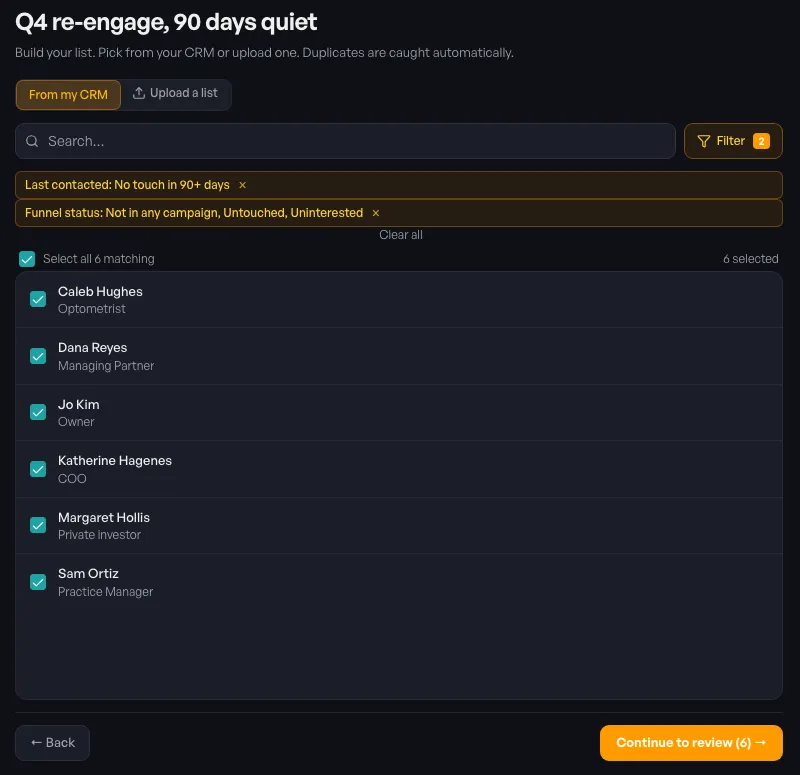
The short answer: filter your CRM by when each contact was last touched, not by what's in their fields, and put everyone who's gone quiet into one new campaign. In SiteMap Prospect, start a Custom campaign, pick Contacts, and on the From my CRM tab filter by Last contacted (for example No touch in 90+ days) and Funnel status. Select all the matches, review the list, and add them. It takes about five minutes, and the list stays honest because it reads the same calls and emails you already logged.
Every broker has a CRM full of people they meant to call back. The tenant who said "check back after the holidays." The owner who wasn't ready last spring. Nobody forgot them on purpose. There was just no list that said "these are the ones you haven't talked to."
Because a CRM sorts by name, company, or date added, and none of those tell you who you haven't talked to. The contacts you worked hard last quarter sit right next to the ones you haven't called in a year, and they look the same in the list.
The usual fix is a spreadsheet export, a "last activity" column you trust about half the time, and an afternoon of sorting. By the time the list is ready, the call block is over.
Here's how the two approaches compare:
| Export and sort a spreadsheet | Filter a Custom campaign in Prospect | |
|---|---|---|
| Finding who's gone quiet | Sort by a last-activity column, if you have one | Filter by Last contacted, built from your logged calls, emails, and meetings |
| Leaving out active deals | Cross-check by hand | Filter out Interested and Converted with Funnel status |
| Overlap with other campaigns | Ask your team | Check Exclude contacts already in another active campaign |
| Size of the list | Whatever fits on screen | Select all covers every match in your account |
| Time to a call list | An afternoon | About five minutes |
The same thing the contact's own page shows as the last touch. Any call, email, text, note, or meeting logged on the contact counts. So does activity logged on their company or a site they're linked to, unless that activity was pointed at a specific other person. Tasks don't count, because a reminder to call isn't a call.
That means you don't have to keep a separate "last touched" field up to date. If you log your calls (see How to update your CRM from your phone between showings), the filter is already right.
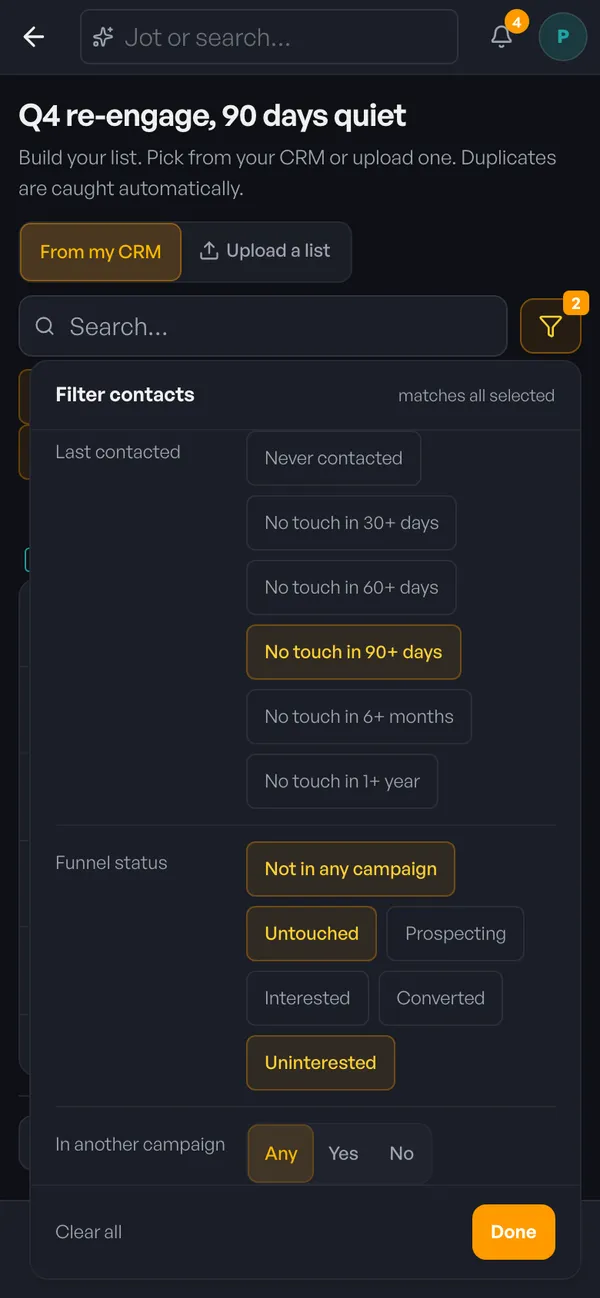
The choices are:
A contact you've never reached also counts as "no touch in 90+ days," since they've gone longer than that without one. Pick Never contacted if you only want the people you've never reached.
The filter panel also has every regular contact filter, like state, source, and your own custom fields, so you can narrow to one market or one type of tenant in the same step. Every filter you set has to match.
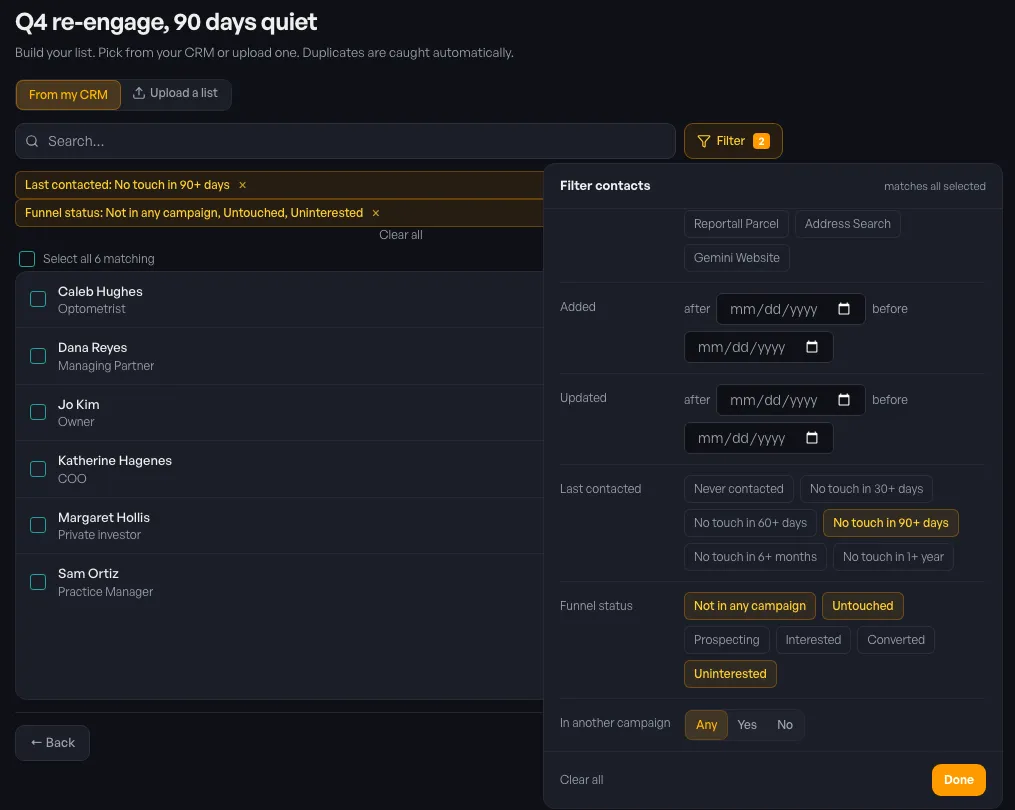
Use Funnel status. It uses the same stages as the rest of Prospect:
For a re-engage list, a good starting point is Not in any campaign, Untouched, and Uninterested. That leaves out anyone who's interested or already a deal. Whether to include Uninterested is your call. A tenant who passed a year ago may be in a different spot now.
There's also an In another campaign filter (Any, Yes, or No). Set it to No if you don't want to call someone a teammate is already working in a different campaign.
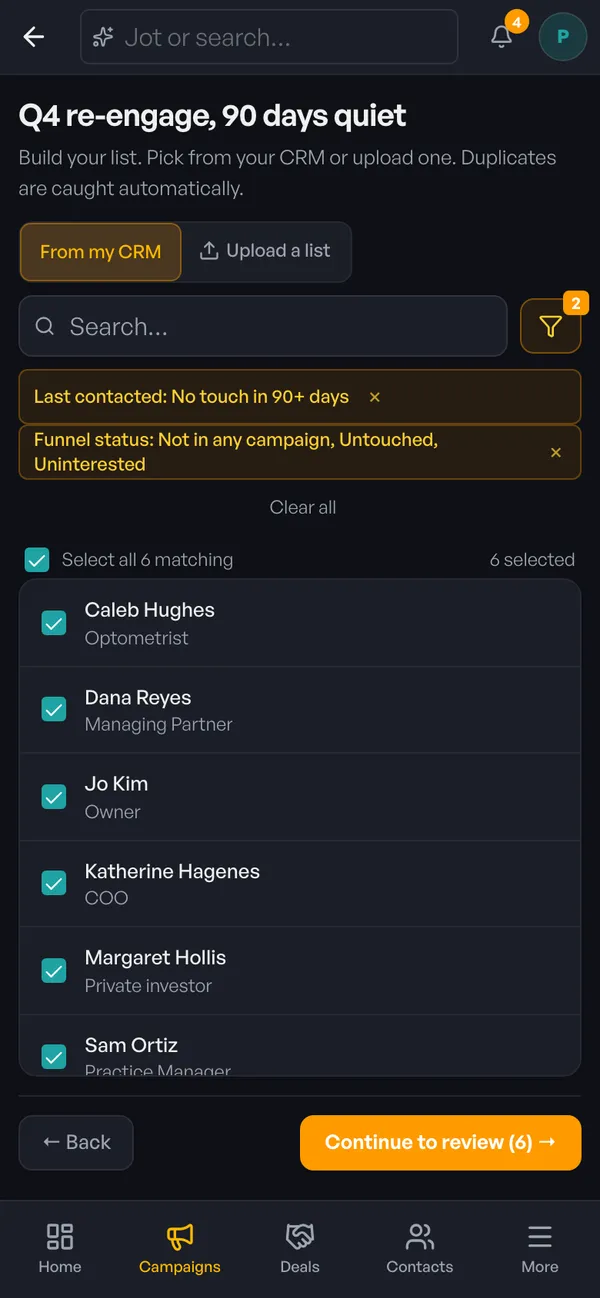
Tick the box next to Select all above the list. The number next to it is every contact in your account that matches the filters, not only the ones loaded on screen. The count on the right shows how many you've selected.
If you untick one person after selecting all, the box changes to a dash so it's clear the list is no longer "everyone." If more than 5,000 contacts match, Prospect asks you to narrow the filter or add them in batches.
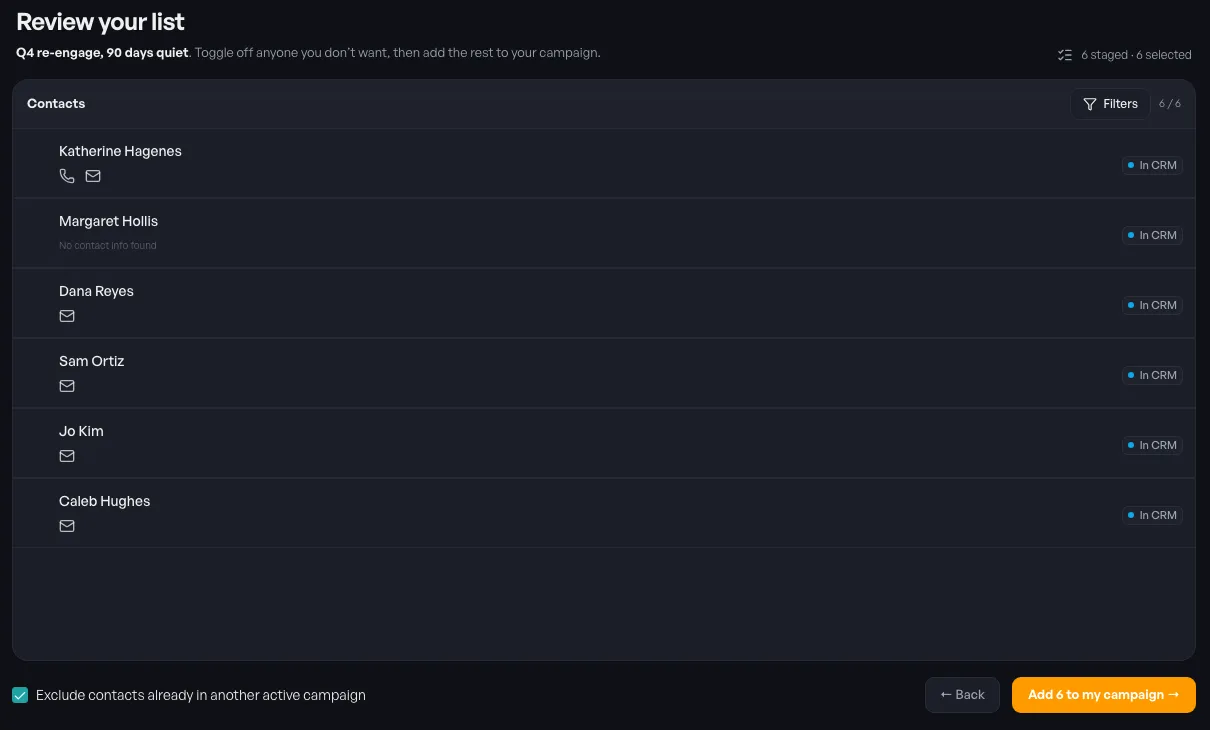
You see every contact you picked, under Review your list. Toggle off anyone you don't want, like the tenant you just ran into at lunch last week.
At the bottom, Exclude contacts already in another active campaign is checked by default. It drops anyone a teammate is already working in another live campaign. Then tap Add to my campaign (the button shows the count) and hold the confirm button for three seconds. The hold is there so a big list never gets added by accident.
From there, the campaign works like any other. You call down the list and log outcomes, and each contact moves through the funnel. How to find tenants for a vacant commercial space covers the calling and email steps.
Use Upload a list instead of From my CRM on the same screen. Upload a CSV or spreadsheet, and matches to existing records are linked instead of duplicated.
If the file has a Company column, each contact is linked to the company with that exact name in your CRM. If no company matches, the contact comes in without one and the import log says so. If several companies share the name, the contact goes to the review queue on the Imports page so you can pick the right one. The campaign waits until those are resolved, so nobody joins unreviewed.
Once a quarter is a good rhythm. Use No touch in 90+ days for a regular check, and No touch in 1+ year for a deeper clean-out of contacts you'd mostly given up on.
No. Calls, emails, texts, notes, and meetings count. A task is a reminder to reach out, so it doesn't reset the clock.
No. The filter reads the activity you already log on each contact, its company, and its sites. There's no extra field to maintain.
Yes. Pick Companies or Sites when you start the Custom campaign. The Last contacted, Funnel status, and In another campaign filters work the same way for all three.
Set In another campaign to No in the filter, or check Exclude contacts already in another active campaign on the review screen. Both look at your whole team's live campaigns.
The prospects most likely to say yes are often ones you already talked to once. The hard part was never the call. It was finding out who to call.
Prospect keeps your contacts, calls, and campaigns in one place. See how it fits together on the Prospect product page, read about CRM & Pipeline, or compare plans on the pricing page.
Start a 30-day free trial and run the whole playbook inside SiteMap.