
How to track tenant rep deals from first call to signed lease
Tristen PaloriOct 6, 20269 min read

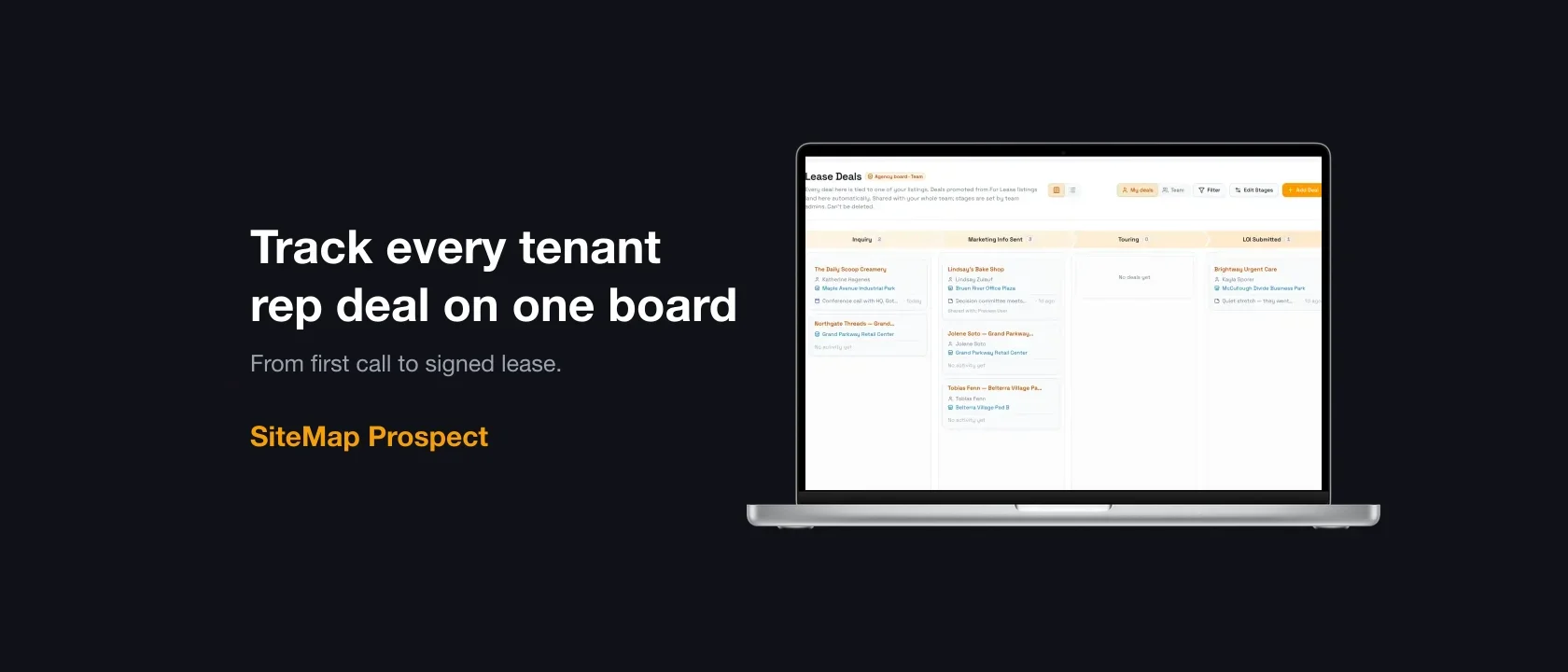
The short answer: give every client requirement its own deal card, put it on a board with one column per stage of a tenant rep deal (prospecting, market survey, LOI, lease), and move the card the day something changes. In SiteMap Prospect, every account starts with a Tenant Rep pipeline already built with those stages. Each card shows the main contact, the building, and how long it's been since anyone touched the deal, so the quiet ones stand out.
Most tenant rep brokers know where every deal stands. The trouble is that the answer lives in their head, their inbox, and a spreadsheet that was right two weeks ago.
Most tenant rep deals move through the same steps:
That's the Tenant Rep pipeline every Prospect account gets on day one: Prospecting, Hot Lead, Nurture, Market Survey, LOI, Lease Contract, Closed Won, and Closed Lost. If your shop uses different words, rename them.
A spreadsheet holds the list. It can't tell you anything you didn't type into it.
| Spreadsheet | Pipeline in SiteMap Prospect | |
|---|---|---|
| Where a deal stands | A status column, updated when you remember | A card in a stage column, moved with a drag |
| Who to call | A name typed into a cell | The linked contact, with phone and email one click away |
| Last touch | Whatever date you last typed | The newest call, email, or note on the deal, with how long ago |
| Lost deals | Row deleted or turned gray | A required reason, kept on the deal |
| Team view | Whoever has the latest copy | Every deal you share, live |
Last touch matters most. In a spreadsheet, a deal that hasn't moved in three weeks looks like every other row. On a board, it's flagged.
Start with the Tenant Rep pipeline under Pipelines in the sidebar. If you want a board for a different kind of work, click + New Pipeline, give it a name, and click Create Pipeline. A new pipeline starts empty.
To change stages on either one:
You can't delete a stage that still has deals in it. Move those deals first, so nothing falls off the board by accident.
Open the deal to link the Company, the Site, and the Contacts. Each contact gets a role, like Decision Maker, Champion, or Landlord Contact, and you can star one with Set as main contact. The main contact is the name that shows on the card.
If the client came from one of your prospecting campaigns, you can skip the form. Open the contact or company record and click Upgrade to Deal in the Prospect banner.
Each card on the board shows:
That last line is the one to watch. After 3 days without activity, the time on it turns amber, and it gets darker at 7 days and bold at 14. A deal that has never been touched says No activity yet. Scan the board for amber and you have your call list.
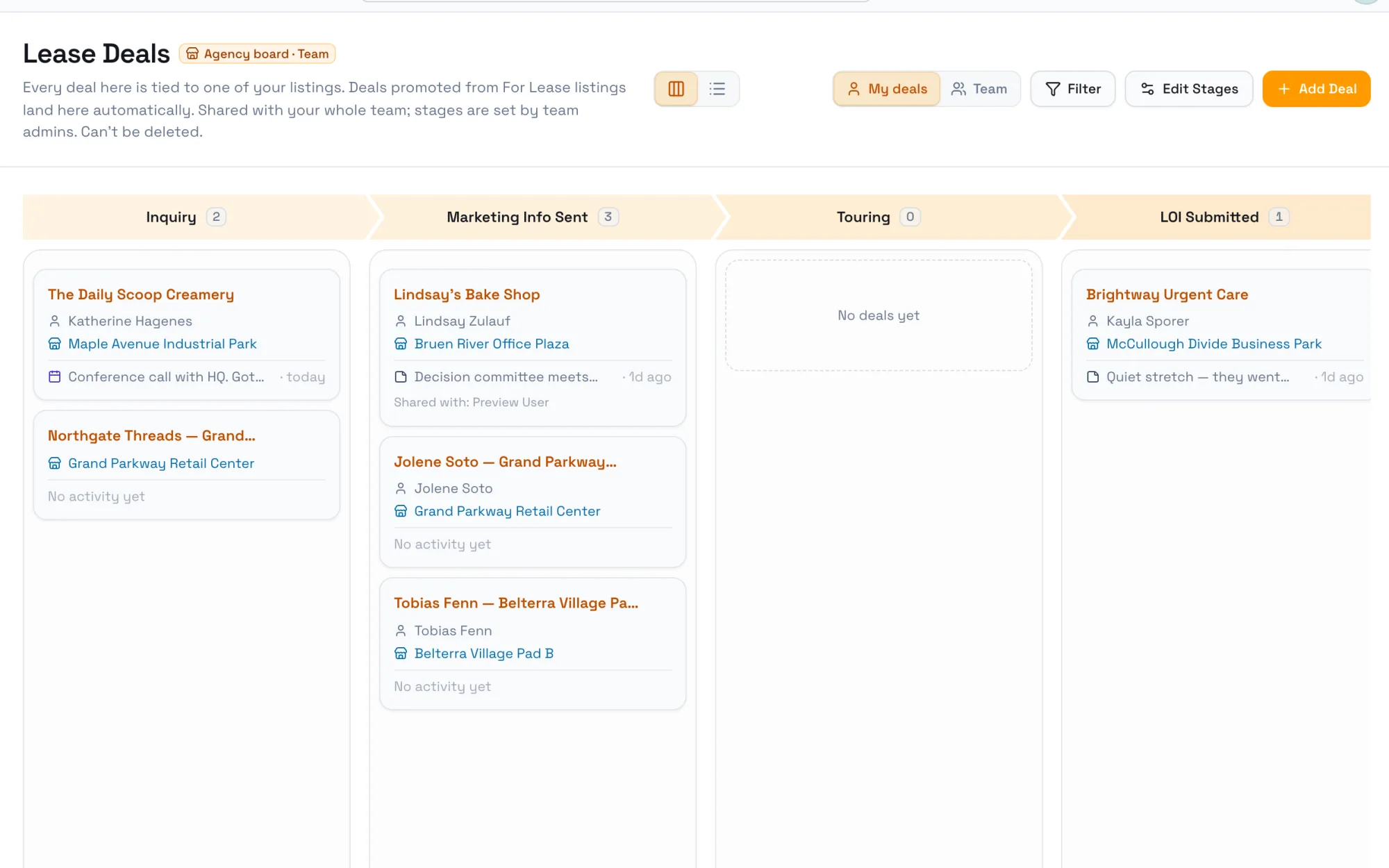
Click List view next to Kanban view when you'd rather read than scan. List view groups deals by stage with a count on each, one row per deal. Prospect remembers which view you used last on that device.
Drag the card into the next column. That's it. The stage change is logged on the deal's activity, so you can see later when it went from Market Survey to LOI.
When a deal moves into the Won stage, the card gets a burst of green confetti.
When a deal moves into the Lost stage, Prospect asks Why was this deal lost? A reason is required. Tap a quick pick (Lost to competitor, No budget, Timing not right, Went dark / unresponsive, Requirements changed, Wrong fit for the space) or type your own, then click Save reason. Cancel puts the card back where it was.
Six months from now, "timing not right" is a reason to call back. "Lost to competitor" is not.
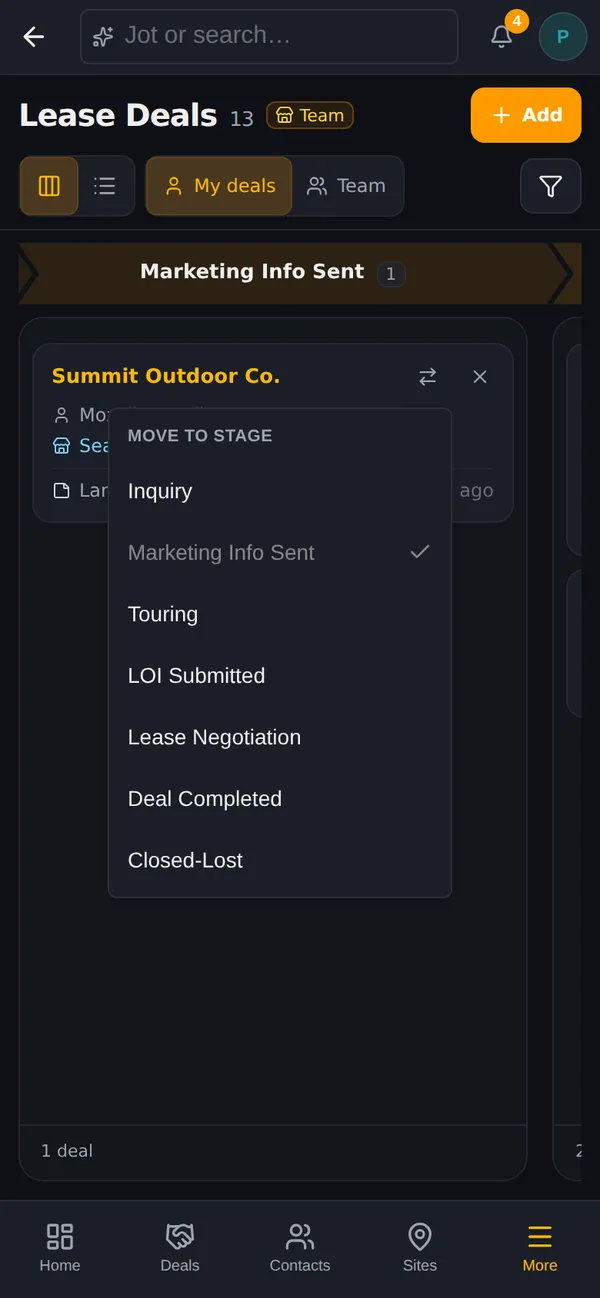
Need to take a deal off the board without losing it? Hover the card and click the ✕. The deal stays in your CRM under Deals, and the toast has an Undo button. On a phone, use the Move to stage menu on each card instead of dragging. See How to update your CRM from your phone for that.
Click Filter and pick from Sites, Companies, Contacts, and Listings. Within one category, a deal that matches any pick shows up. Across categories, it has to match all of them.
Click any card to open the deal. The left side holds the details (title, notes, deal source, deal type, value, probability, expected close date), the linked site, company, and contacts, and Deal Files for the LOI drafts, floor plans, and lease redlines. Drop a file on it to upload.
The right side is the deal's activity. Log a Call, Email, Text, Note, Task, or Meeting there. The card's last-activity line reads from it.
To bring in a teammate, click Share deal. Activity on a deal is private to the owner and the people it's shared with.
A board with one column per stage, from first conversation to signed lease, and one card per deal. You move cards left to right as deals progress.
Yes. Click Edit Pipeline to rename, reorder, add, or delete stages, mark the won and lost stages, and set colors. You can't delete a stage that still has deals in it.
Yes. Click + New Pipeline in the sidebar and name it, like "Investment Sales". Each pipeline has its own stages. Deals promoted from your listings go to the team's Lease Deals and Sale Deals boards on their own.
A reason tells you whether to call back in six months or move on. On listing deals it also shows up on the landlord report.
No. Clicking ✕ takes the deal off the pipeline but keeps it in your CRM under Deals. Click Undo on the toast to put it right back.
A pipeline works when it's the one place you look. Move cards the day things change, and let the amber cards tell you who to call.
If you're still landing your first clients, start with How to get your first tenant representation assignment. To see how deals fit with the rest of Prospect, visit CRM & Pipeline, the Prospect product page, or compare plans on the pricing page.
Start a 30-day free trial and run the whole playbook inside SiteMap.