
How to stop retyping the same building into every client survey
Tristen PaloriOct 9, 20269 min read

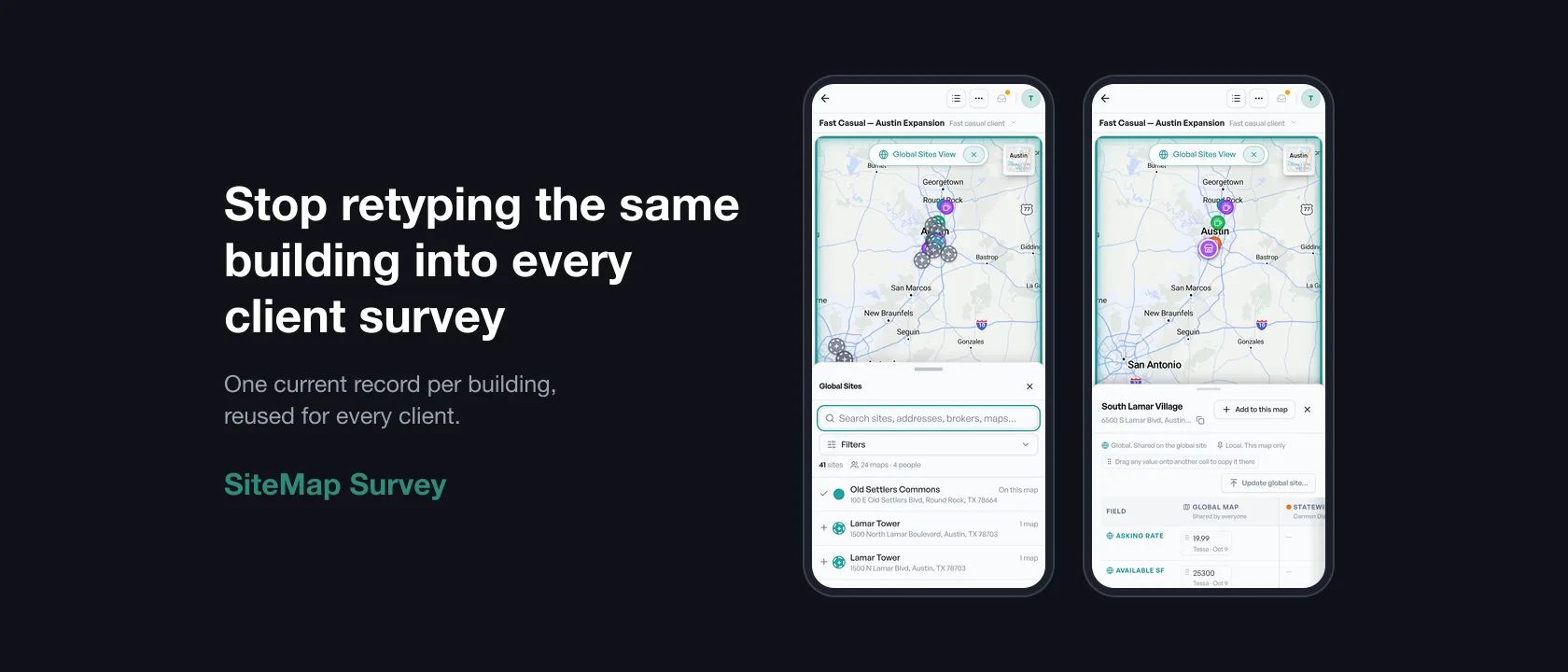
The short answer: keep one shared record for each building, separate from any one client's survey, and pull from it every time the building fits a new requirement. In SiteMap Survey, every site you or your team puts on a map lands in Global sites. Turn it on from any map, click a building, and you see its rate, size, cover photo, and flyer next to every map it's already on. Click Add to this map, and the new client's pin starts with the team's current numbers instead of a blank.
Good buildings show up on a lot of surveys. The 4,000 SF endcap that works for a dental group this month will probably work for a bank branch next quarter. The problem is that each survey starts from scratch, so you hunt down the flyer again, retype the rate, and hope it's still right.
Because each survey is its own file. You typed $28.00 in March. A teammate called the listing broker in May and got $29.50, and put it on their survey. Neither file knows about the other. When the building comes up again, you copy whichever one you find first.
It's not just rates. Square footage, NNN, the cover photo, and the latest flyer all drift the same way.
Here's how the two approaches compare:
| A new spreadsheet or deck per client | Global sites in Survey | |
|---|---|---|
| Where the building's info lives | Inside last month's survey file | One shared site, used by every map |
| Starting a new survey | Retype it, or copy from an old file | Add the site; shared values fill in |
| A teammate updates the rate | You find out on a call, if at all | Their map shows it differs from the global site |
| Flyer and cover photo | Saved in someone's downloads | Kept on the site with who added it and when |
| Two people disagree | Nobody notices | Side by side, one column per map |
Open Global sites from any map.
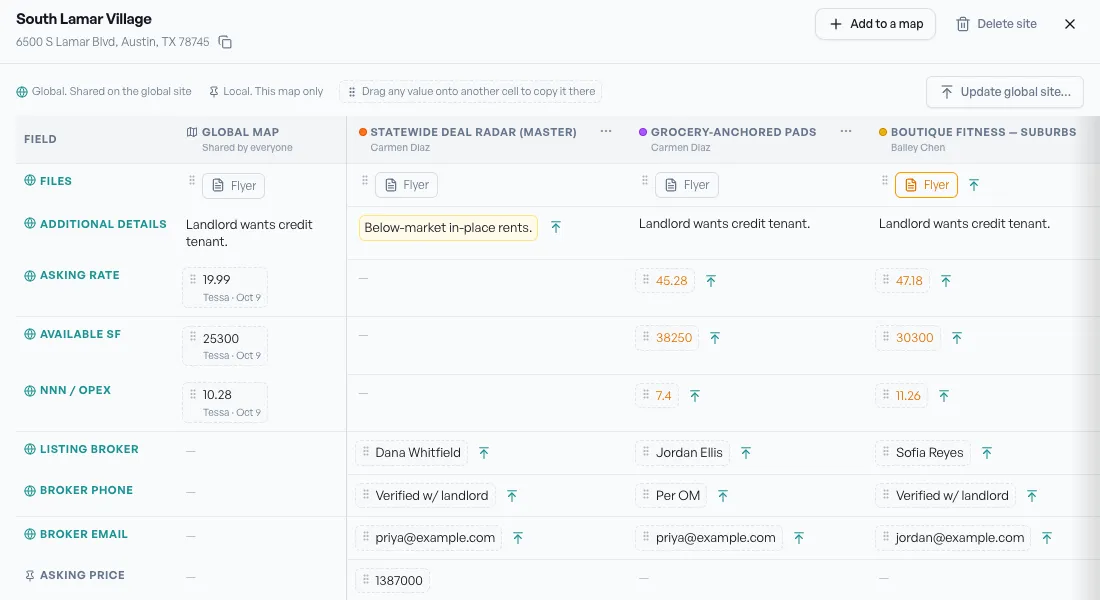
A number that differs from the global site shows in a different color, so you know which one is current before you quote it.
On a phone, the same view works as a sheet over the map: search the list, tap a building, and scroll across its maps.
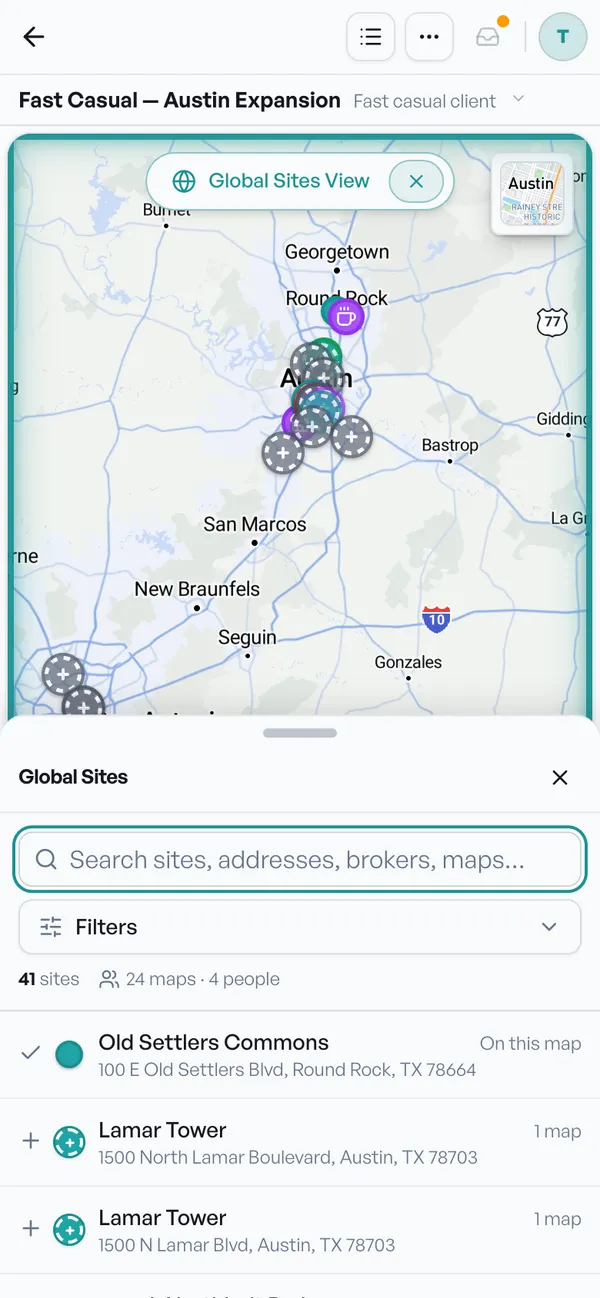
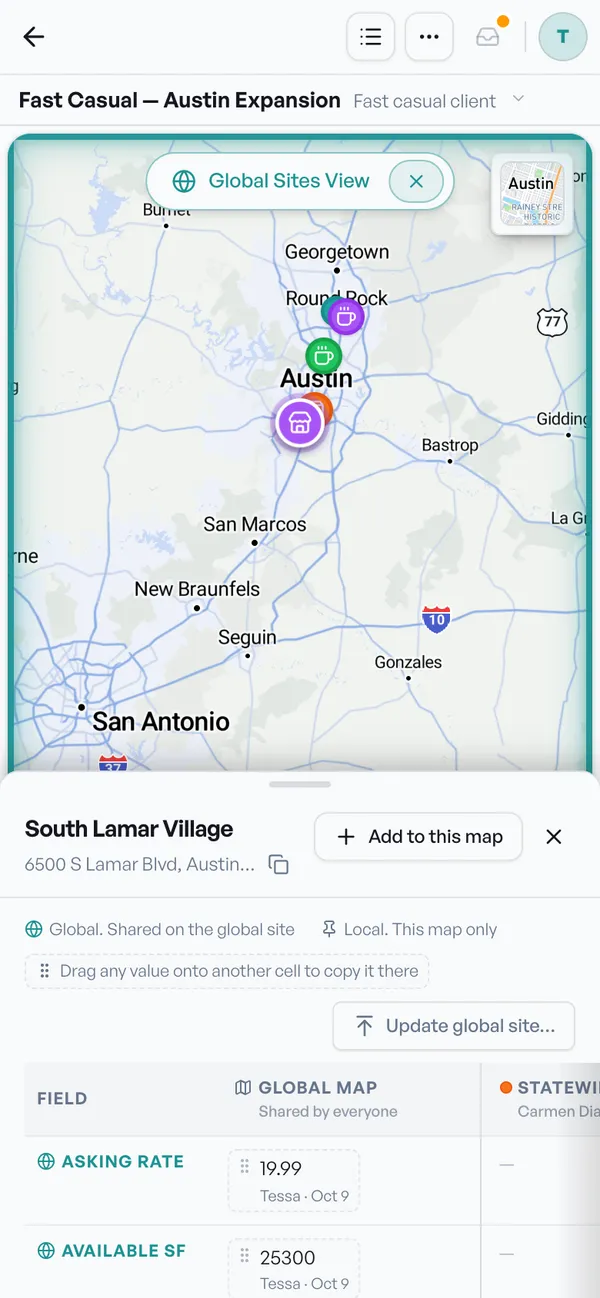
From the new client's map, turn on Global sites, click the building, and click Add to this map. The site lands on the map, and any field on this map that's marked global fills in from the building's shared value. The cover photo and flyer come along too.
To add several buildings at once, or to start a brand new map from them, use the Global Sites page (the sites band at the top of your maps page opens it):
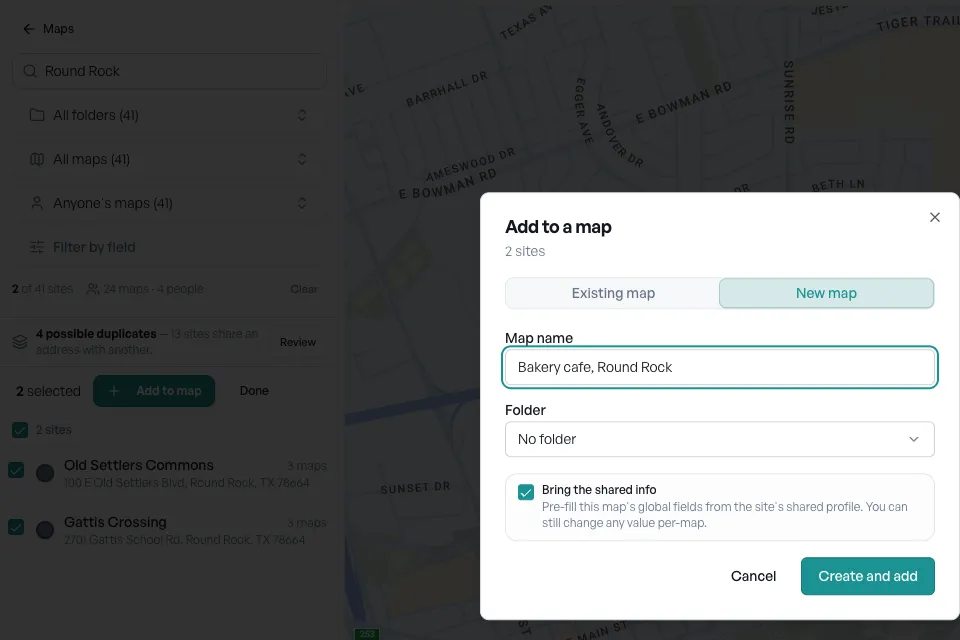
Nothing on another broker's map changes. Your map gets its own copy of the values, and you can edit them for this client without touching anyone else's survey.
Only the ones you mark Global. Every field starts as Local, meaning it belongs to that map.
Asking rate, NNN, building SF, and the listing broker are good global fields. Things that are about one client, like "Fit for client" or "Tour order", should stay local.
There are three ways, from quickest to most thorough.
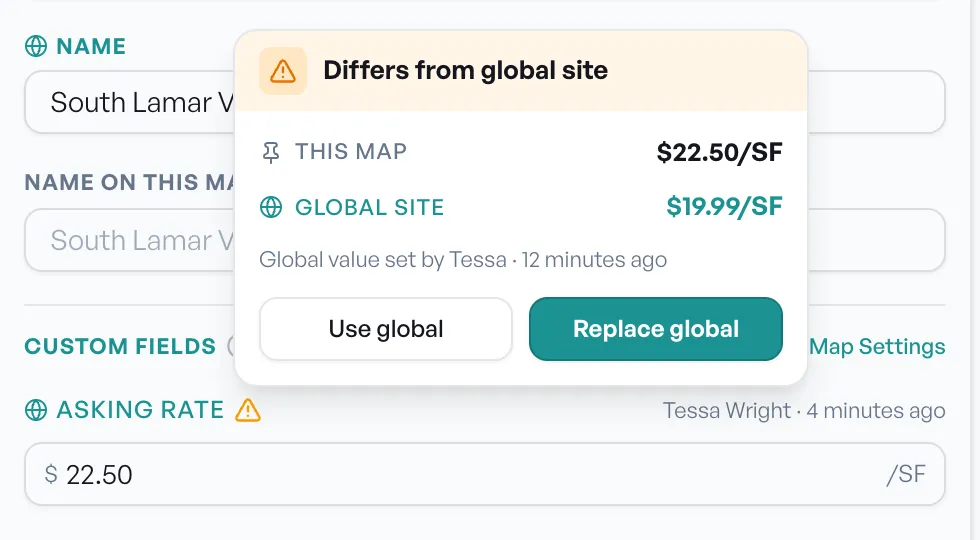
Open the site and click the pencil to edit it. When a global field differs from the global site, a warning shows next to the field name. Hover over it to see both numbers and who set the global one. Click Use global to take the shared number, or Replace global to make yours the shared number.
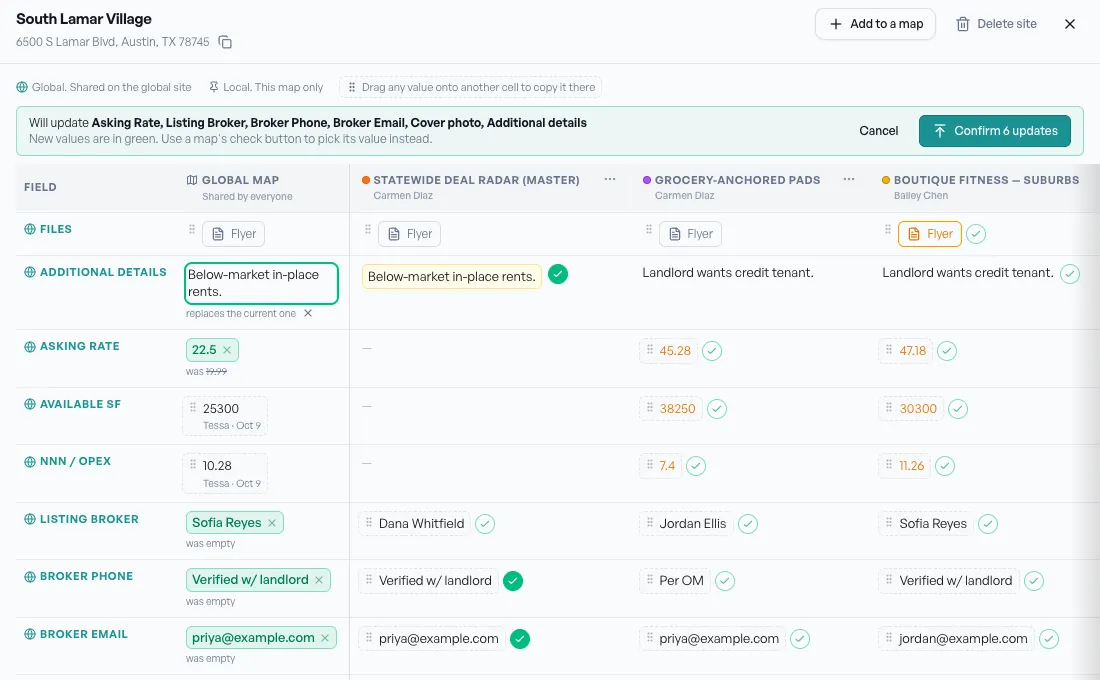
In the site drawer, drag a value from any map's column onto the Global Map column. A cover photo can go onto Cover photo, and a flyer onto Files. The confirmation has an Undo.
Click Update global site…. Survey lines up every shared field and document for that building and shows the new values in green, with the old value underneath. It picks the value most maps agree on, and yours when they don't agree. Click the check next to another map's value to use that one instead, or the × to keep the current value. The bar at the top names everything that will change. Click Confirm (it says how many, like Confirm 6 updates). One Undo reverses the whole batch.
If a teammate changed a value while you were looking at it, Survey skips that one and tells you, rather than writing over their change.
No. Your client sees your map, through your share link: the sites you picked, with the values on your map. Global sites is for you and your team. Your notes on the building stay on your map, and a teammate's notes from their own map don't show up on your client's link.
Once the building is on the map, the rest of the survey works the same. For setting up suites and a monthly rent formula, see How to compare monthly rent across buildings and suites for a tenant. For the full survey workflow, see Site Surveys.
It's the shared record for one building: its location, the values of your team's global fields, its cover photo, flyer, and files. Every map the building is on points back to it.
No. Your edit stays on your map. The global site only changes when someone chooses to update it (or, if it has no value yet, from the first map that fills one in). Even then, other maps keep their own values. If a teammate's map took its number from the global site, they see a warning that it changed, and they decide whether to use the new one.
Yes. The global value shows who set it and when, so you know whether you're looking at last week's number or last spring's.
Survey flags possible duplicates on the Global Sites page (4 possible duplicates, for example). Click Review, then Combine to merge them into one site, or Keep separate if they really are different buildings.
No. Clients only see your share link. Someone you've invited to a single map from outside your team can work on that map, but only your team can change the global site.
The building doesn't change much from one client to the next. Your survey shouldn't make you start over every time it shows up.
To see what else goes into a client survey, visit the Survey product page or compare plans on the pricing page.
Start a 30-day free trial and run the whole playbook inside SiteMap.