
How to compare monthly rent across buildings and suites for a tenant
Tristen PaloriOct 2, 20269 min read

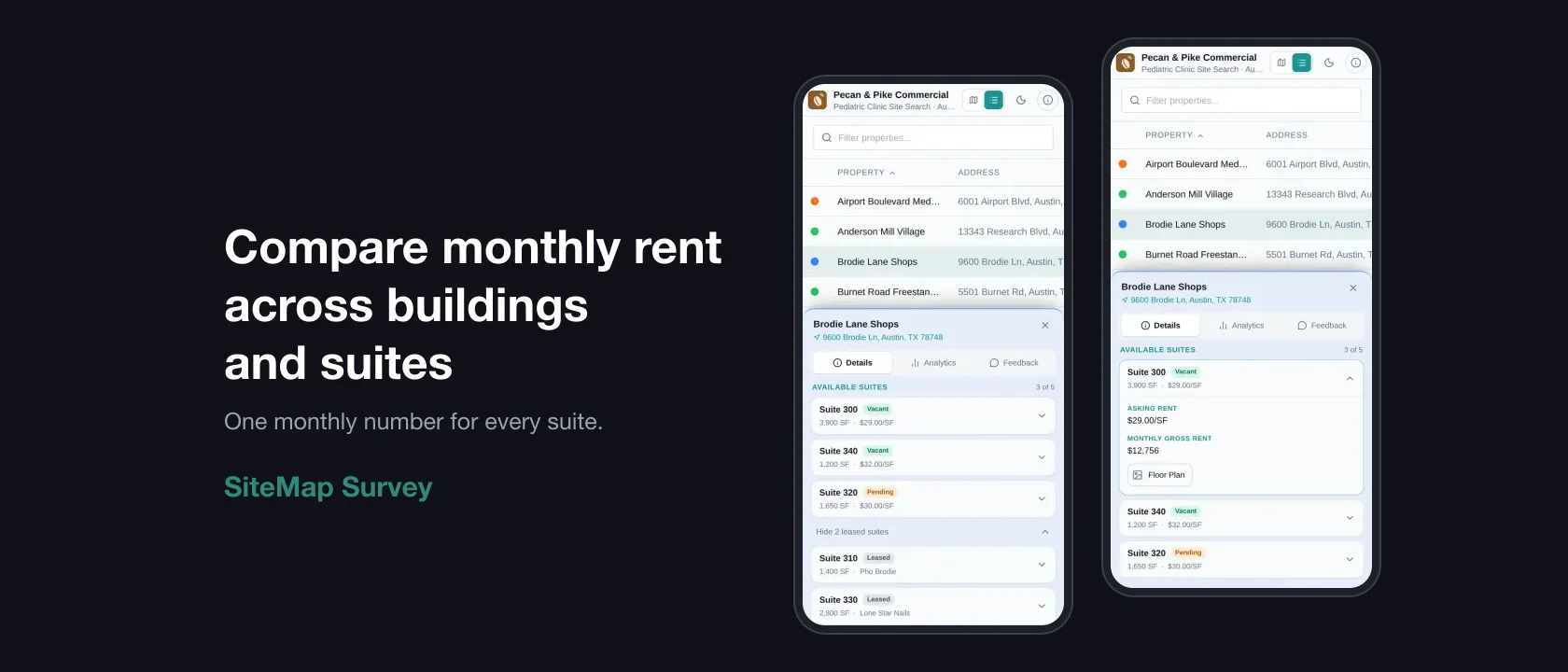
The short answer: to compare spaces for a tenant, put every building on one map, list the suites that fit inside each one, and show the client a single number they understand: what they'd pay per month. In SiteMap Survey, you turn on Suites for the map, add a Formula field like ((Rate + NNN) ÷ 12) × Suite SF, and every site and every suite shows its own monthly gross rent, worked out from the numbers you already entered.
Clients don't think in dollars per square foot per year. They think "what does this cost me a month." Most brokers do that math in a spreadsheet, once per suite, and redo it every time a landlord changes the rate. This guide is about doing it once.
Because the numbers don't arrive in the same shape. One flyer lists a building with three vacant suites. Another lists one suite and leaves NNN for a separate page. A third gives you a rent roll. If each building is one pin with one rate, the client can't see that Suite 140 fits and Suite 300 doesn't.
Then there's the math. Asking rate and NNN are quoted per square foot per year, and every suite has its own size. That's a calculation per suite, per update.
Here's how the two approaches compare:
| Spreadsheet next to the survey | Suites and a formula field in Survey | |
|---|---|---|
| Suites in a building | One row per suite, separate from the map | Listed inside the site they belong to |
| Monthly gross rent | Typed into a cell for each suite | Worked out for every site and suite |
| Rate change | Redo the math, resend the file | Edit the rate; the rent updates |
| Missing NNN | A blank, or a guess | A dash, with a note saying what's missing |
| What the client sees | A PDF or a spreadsheet attachment | The same number on their map link and tour book |
Turn on suites for the map, then add them to each site.
If you add a site by dropping in a flyer, the AI reads the suites on the flyer too. You review the list it found (Found 3 suites, for example) before anything saves.
On the site panel, vacant and pending suites show first. Leased suites sit behind a toggle (Show 2 leased suites, for example), so the client sees what's available before the co-tenants. Leased suites are visible to the client by default, since knowing the neighbors is part of the decision. You can hide any suite on any map.
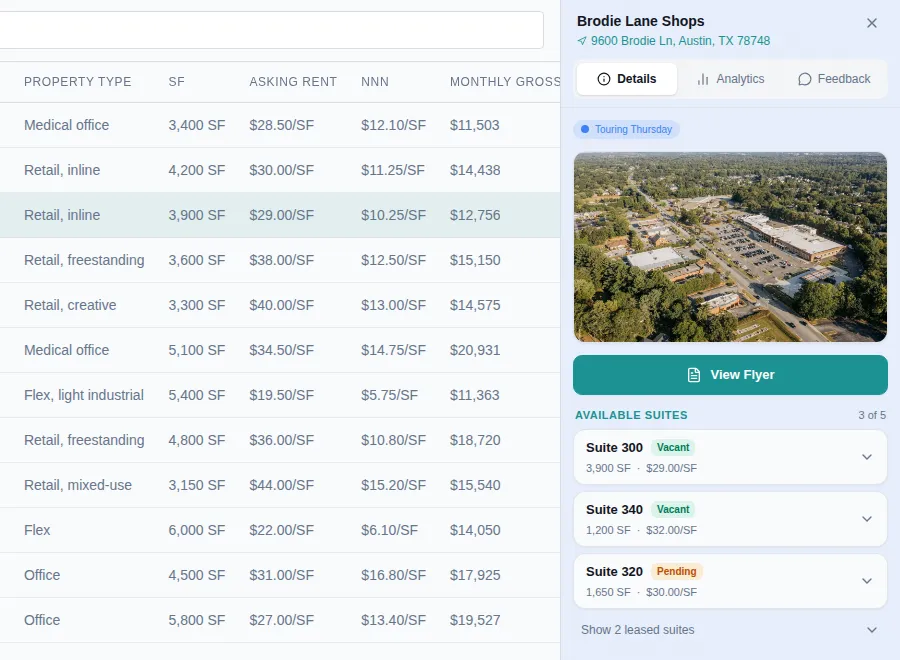
Add a formula field. A formula is worked out from the map's other fields, so you set it up once and it fills in for every site.
You can also build your own from the field buttons, basic math (add, subtract, multiply, divide, parentheses), and ROUND, MIN, MAX, and ABS if you need them. A formula can use another formula.
Set the formula's Applies to to Suites or Both. Now each suite gets its own number. The builder groups the field buttons by where the value comes from: the suite, the site, or the suite's own value with the site's as a fallback. Suite SF is the suite's own size.
So if the building has one NNN and each suite has its own size and asking rate, ((Rate + NNN) ÷ 12) × Suite SF gives every suite its own monthly gross rent. A suite with no rate of its own uses the building's.
Here's how that looks on our sample map. Brodie Lane Shops has $10.25 NNN on the building. Suite 300 is 3,900 SF at a $29.00 rate, so its monthly gross rent is ((29 + 10.25) ÷ 12) × 3,900, or $12,756. Change the rate and the rent updates as you type.
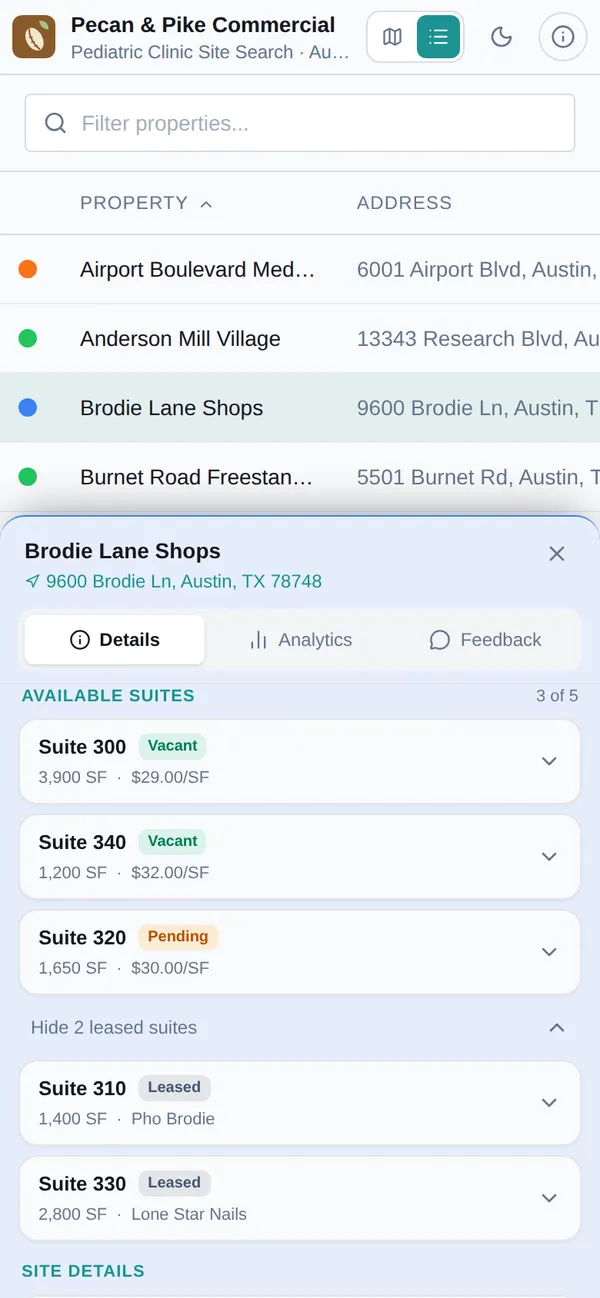
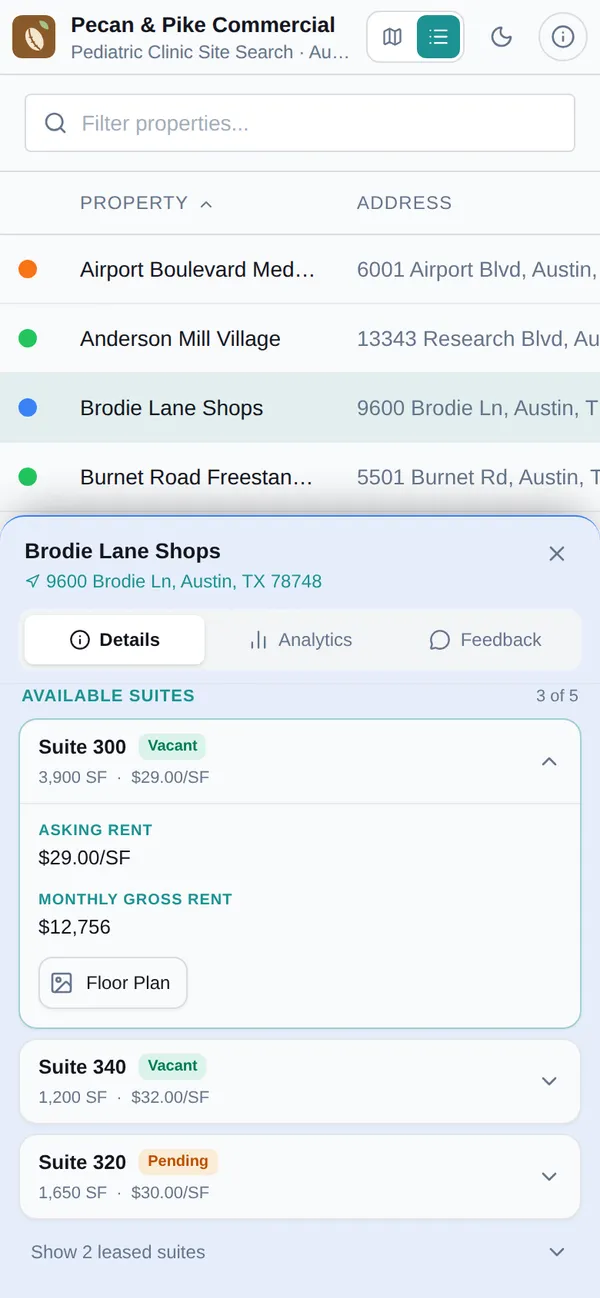
The formula shows a dash, not a zero, and says why: "Needs NNN on the site," for example, with a note on where to fill it in. A missing input means you don't know the answer yet, and a $0 rent on a client deliverable is worse than a blank.
Formula values are read only. You change the inputs, not the result, so nobody overwrites the math by hand.
Everywhere the field shows:
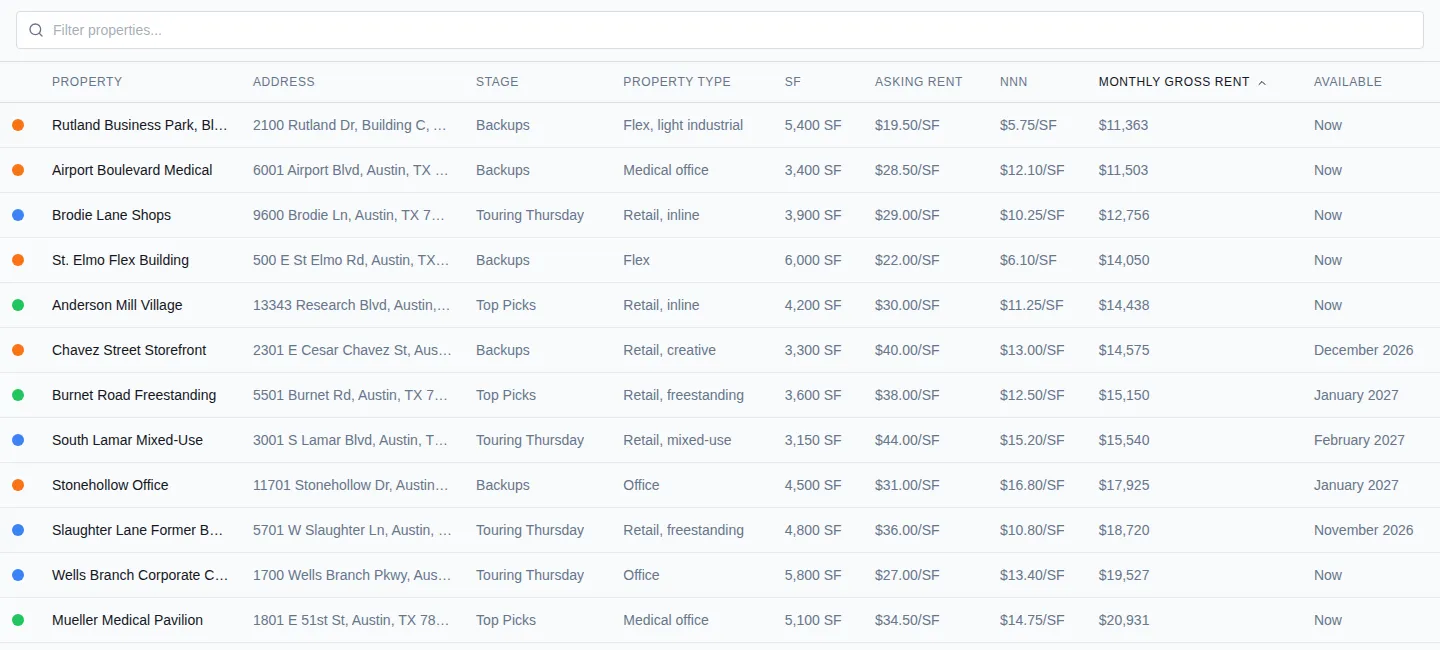
If you hide a field the formula uses, the formula is hidden too. A visible "Price minus commission" can't leak the commission you hid.
Save the map as a template and the formula comes with it. Your next survey starts with monthly gross rent already set up.
See Site Surveys for the rest of what goes on a client map.
Add the annual base rate and the annual NNN (both per square foot), divide by 12, and multiply by the suite's square feet. For a 2,000 SF suite at $24.00 plus $8.00 NNN, that's ((24 + 8) ÷ 12) × 2,000, or $5,333 a month.
Yes. Turn on Suites on the Pin fields tab of Map setup and each site gets a Suites tab. Your client sees the vacant and pending suites first, with leased suites behind a toggle.
Edit the rate on the site or suite. Every formula that uses it updates, on your map and on the client's link.
Yes. When the formula applies to suites, each input comes from the suite first, then the site. That's how one building-wide NNN feeds every suite's rent.
No. A formula is as hidden as the most hidden field it's built from. If you hide one of its inputs, the formula is hidden on that link too.
A client choosing between buildings needs one number per option, worked out the same way every time. Set it up once on the map and it holds up when the rates change.
For the rest of the survey workflow, read How to send clients a CRE market survey without Drive links or flyer PDFs. To see everything Survey does, visit the Survey product page or compare plans on the pricing page.
Start a 30-day free trial and run the whole playbook inside SiteMap.