
How to send clients a CRE market survey without Drive links or flyer PDFs (Survey quick-start guide)
Tristen PaloriSep 29, 20267 min read

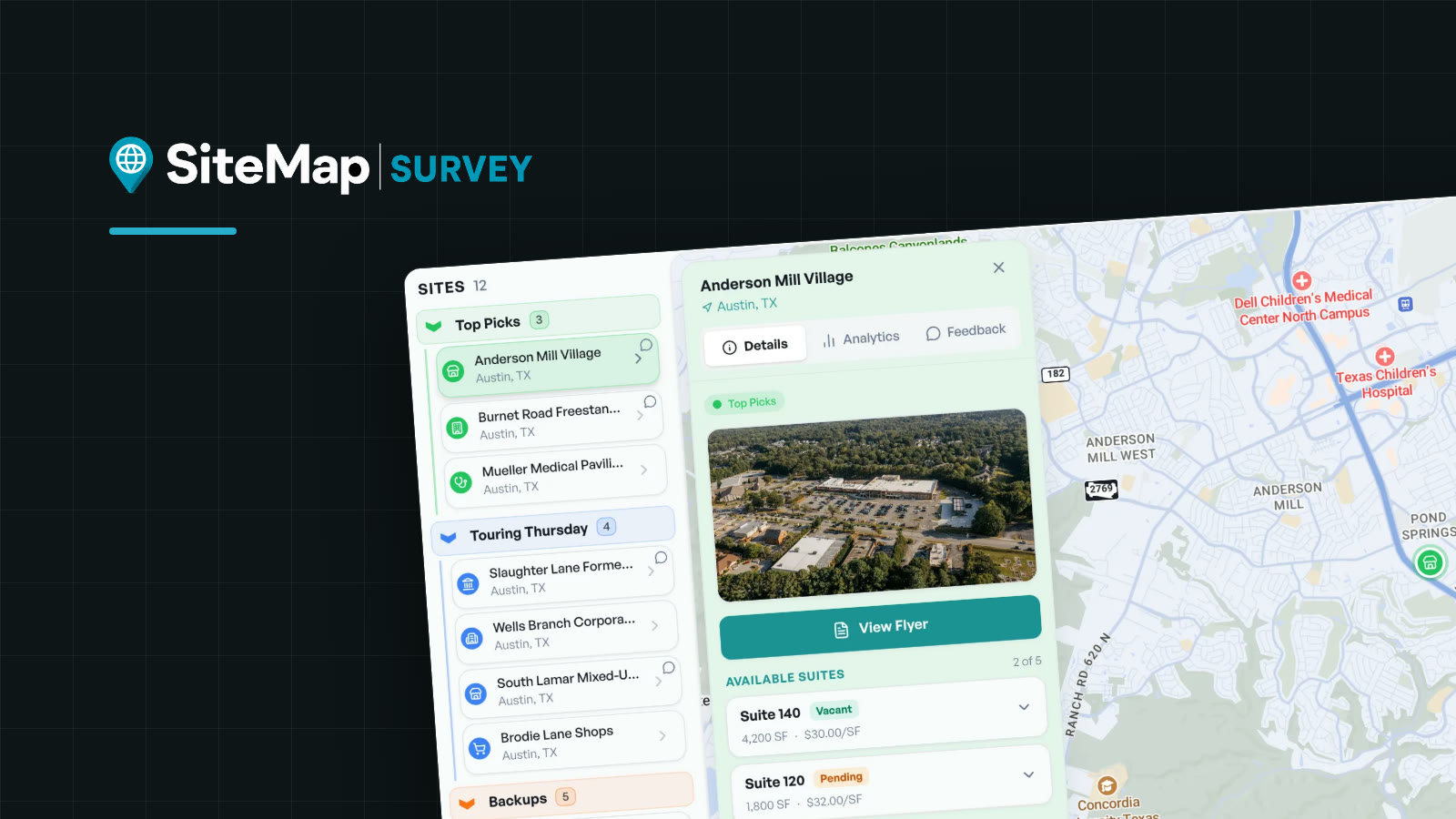
The short answer: instead of emailing flyer PDFs or a Google Drive folder, put every site you're recommending on one interactive map and send your client a single link. In SiteMap Survey, you drop in the listing flyers, AI pulls the address, size, rate, and listing broker from each one, and your client reviews the sites on their phone or laptop and tells you which ones they like.
This guide walks through that workflow from a stack of flyers to a shared client map and a planned tour. It's the same flow shown in our 1-minute Survey product video.
A market survey (sometimes called a site survey) is the set of available spaces a tenant rep broker recommends for a client's requirement, with the facts the client needs to compare them: location, size, rate, NNN or operating expenses, and the listing broker. It's usually the first real deliverable in a tenant rep assignment, and it shapes which sites the client tours.
The format matters because the client has to act on it. Here's how the usual approach compares:
| Drive folder of flyer PDFs | One interactive client map | |
|---|---|---|
| Seeing where sites are | Client opens each PDF and guesses | Every site pinned on one map |
| Comparing rates and sizes | Retyped into a spreadsheet, if at all | Side by side in a list view |
| Client feedback | Scattered across email replies | Likes and comments on each site |
| Updates | Send a new folder, and another email | The same link stays current |
| Tour prep | Mapped by hand the night before | Route built from the sites on the map |
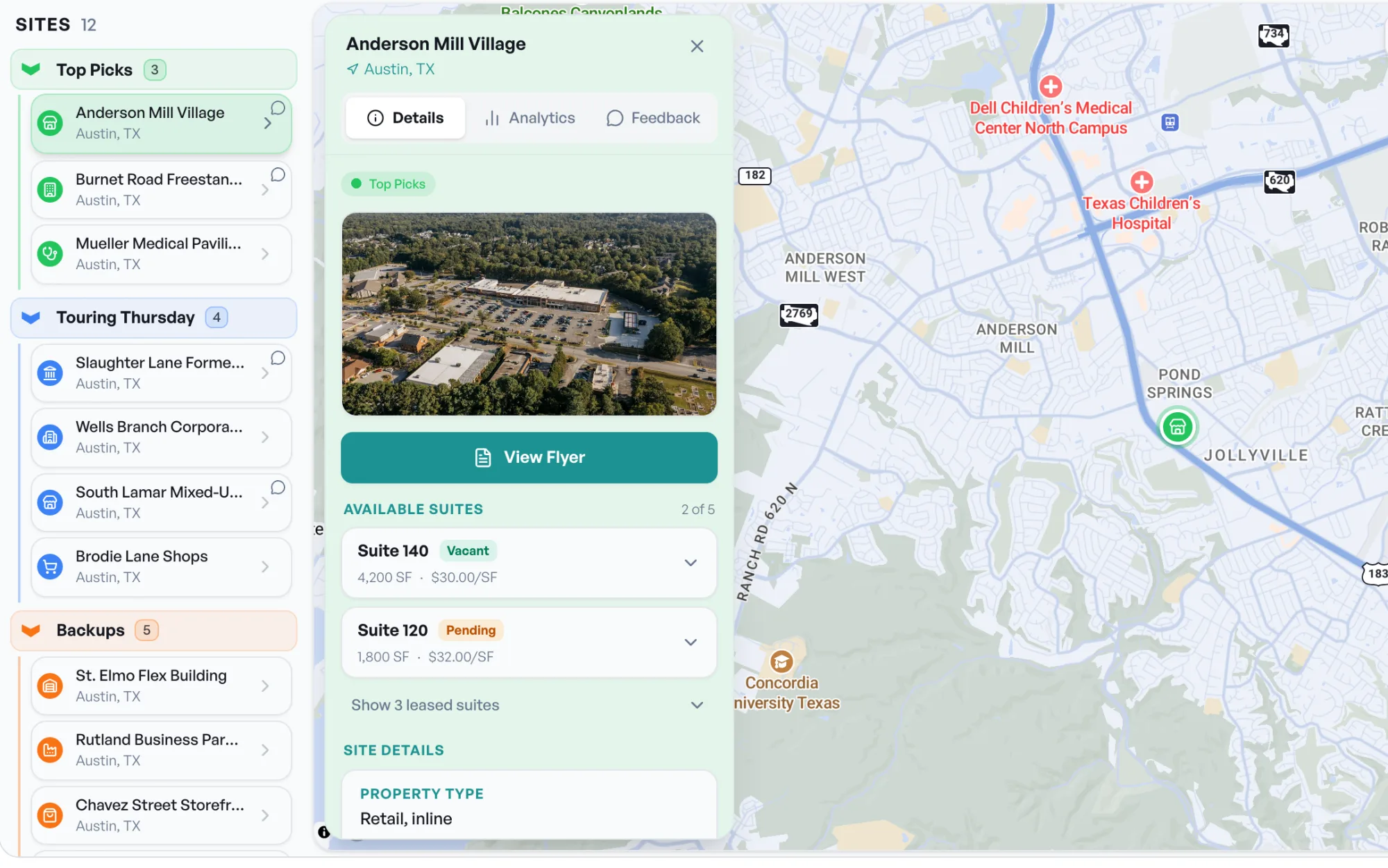
Start a new map for the requirement, named after the search, like "Pediatric Clinic Site Search." A map holds every site you're considering, organized into stages you choose, such as Top Picks, Touring Thursday, and Backups.
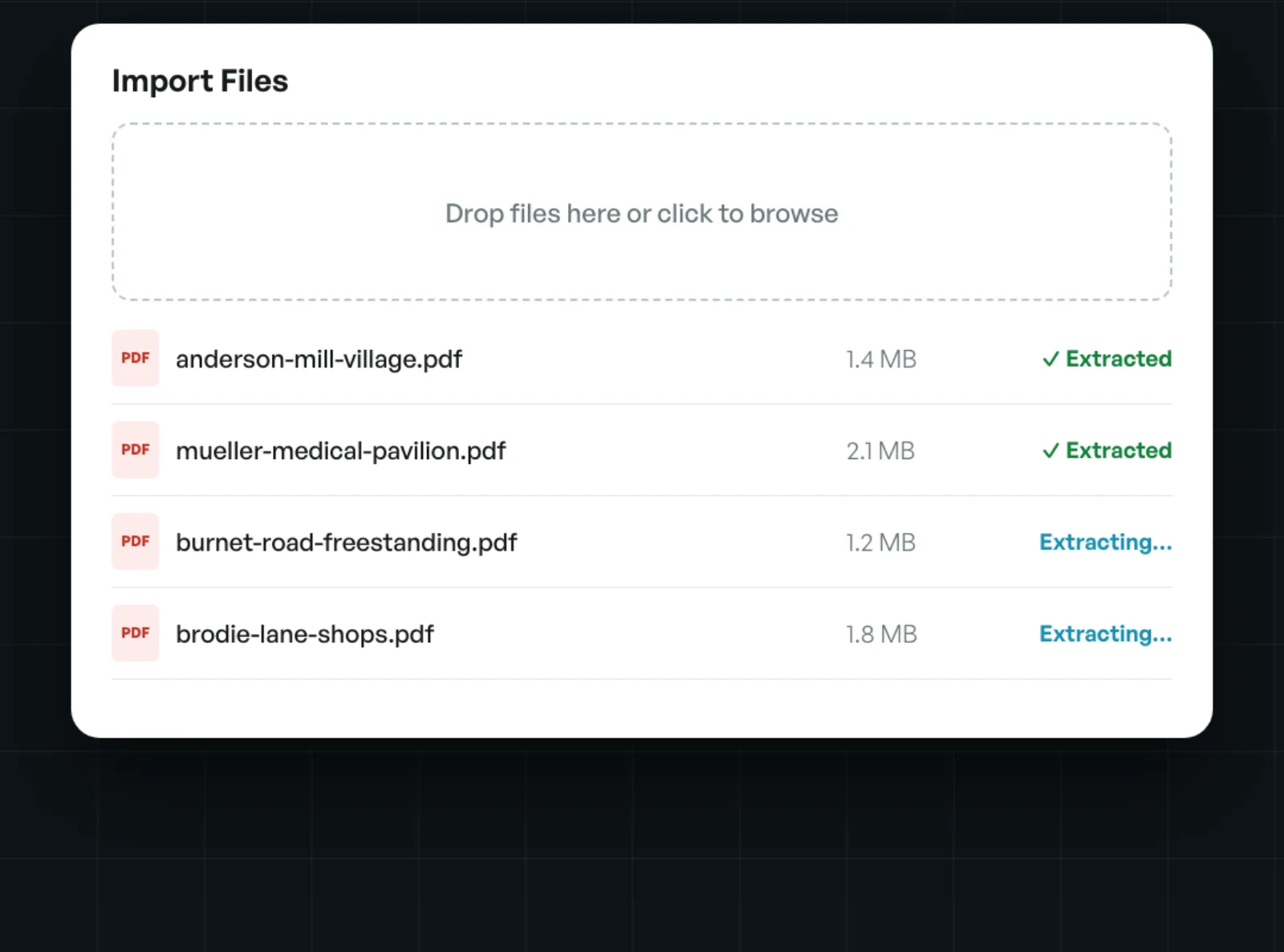
This is where the busywork disappears. Click Add site, then Import from Flyer, or drag flyers straight onto the map's sidebar. You can drop up to ten flyers at a time as PDFs or images (PDF, JPEG, PNG, or WebP).
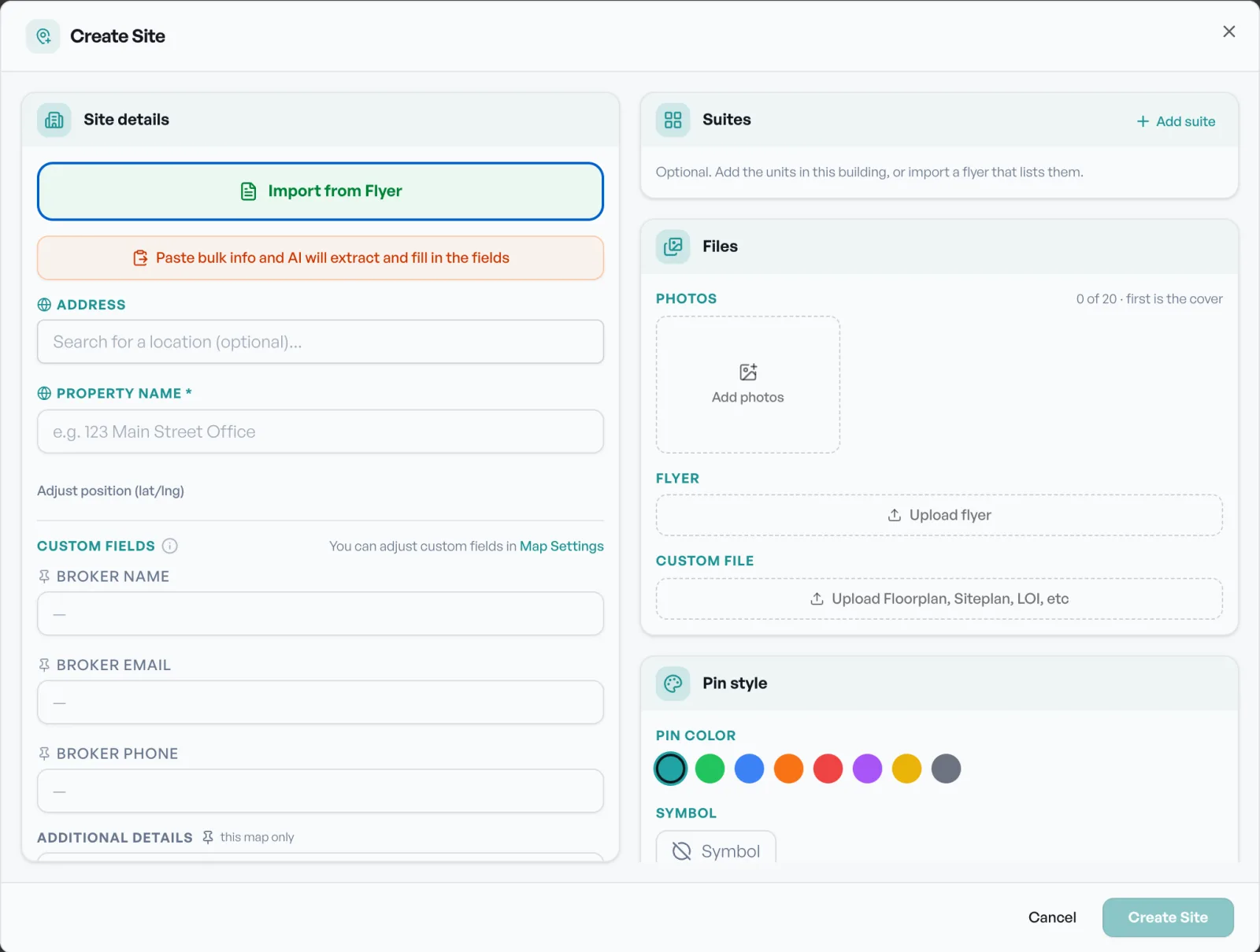
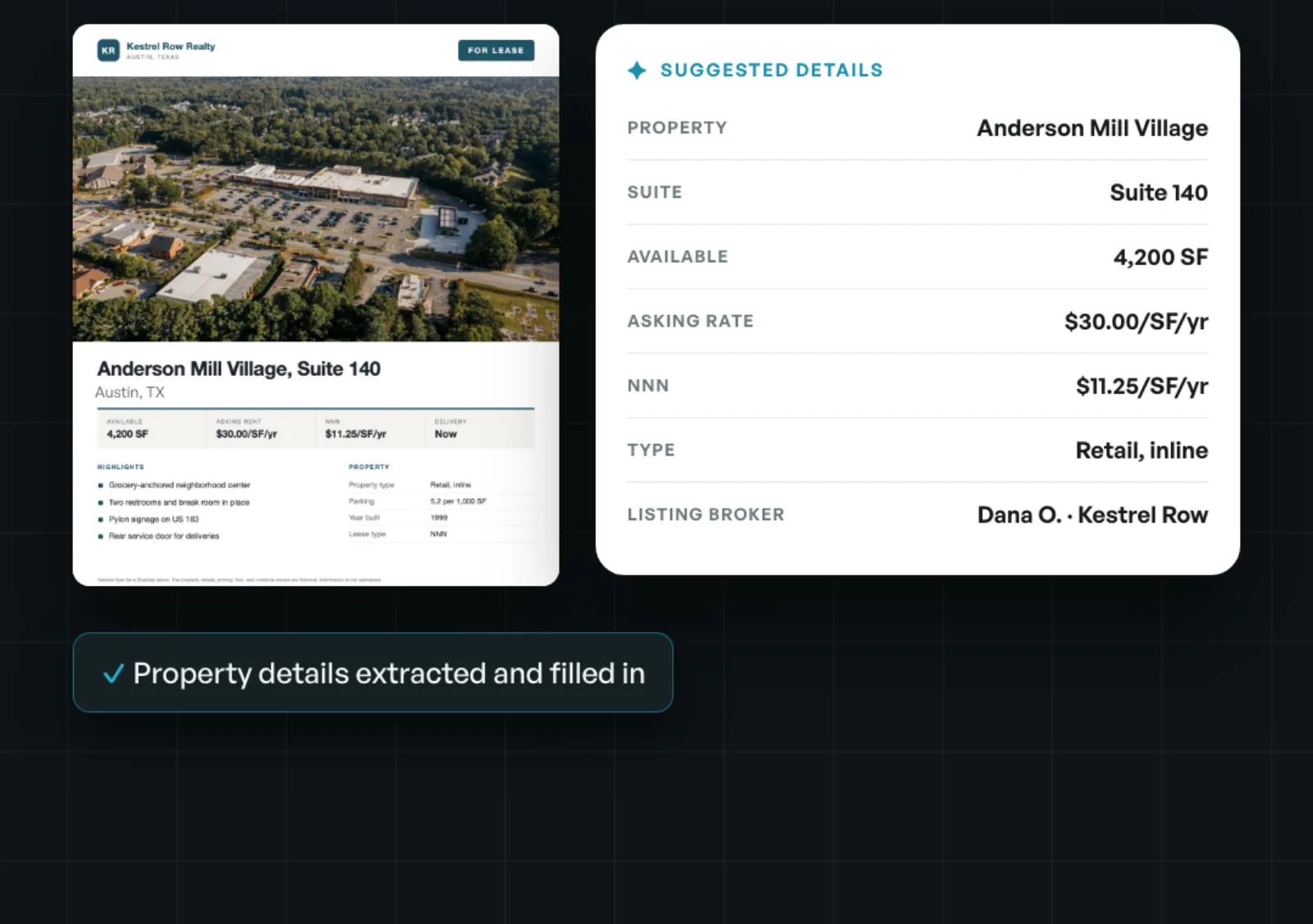
AI reads each flyer and fills in the site: property name, address, available square feet, asking rate, NNN, property type, and the listing broker's contact information. You review the suggested details and save.
Add photos, suites, floor plans, or site plans as you go. Everything stays attached to the site.
Now do the part only you can do: curate. Drag the best options into Top Picks, park the maybes in Backups, and add your own notes. Your judgment is what the client is paying for; Survey just gets the data entry out of the way.
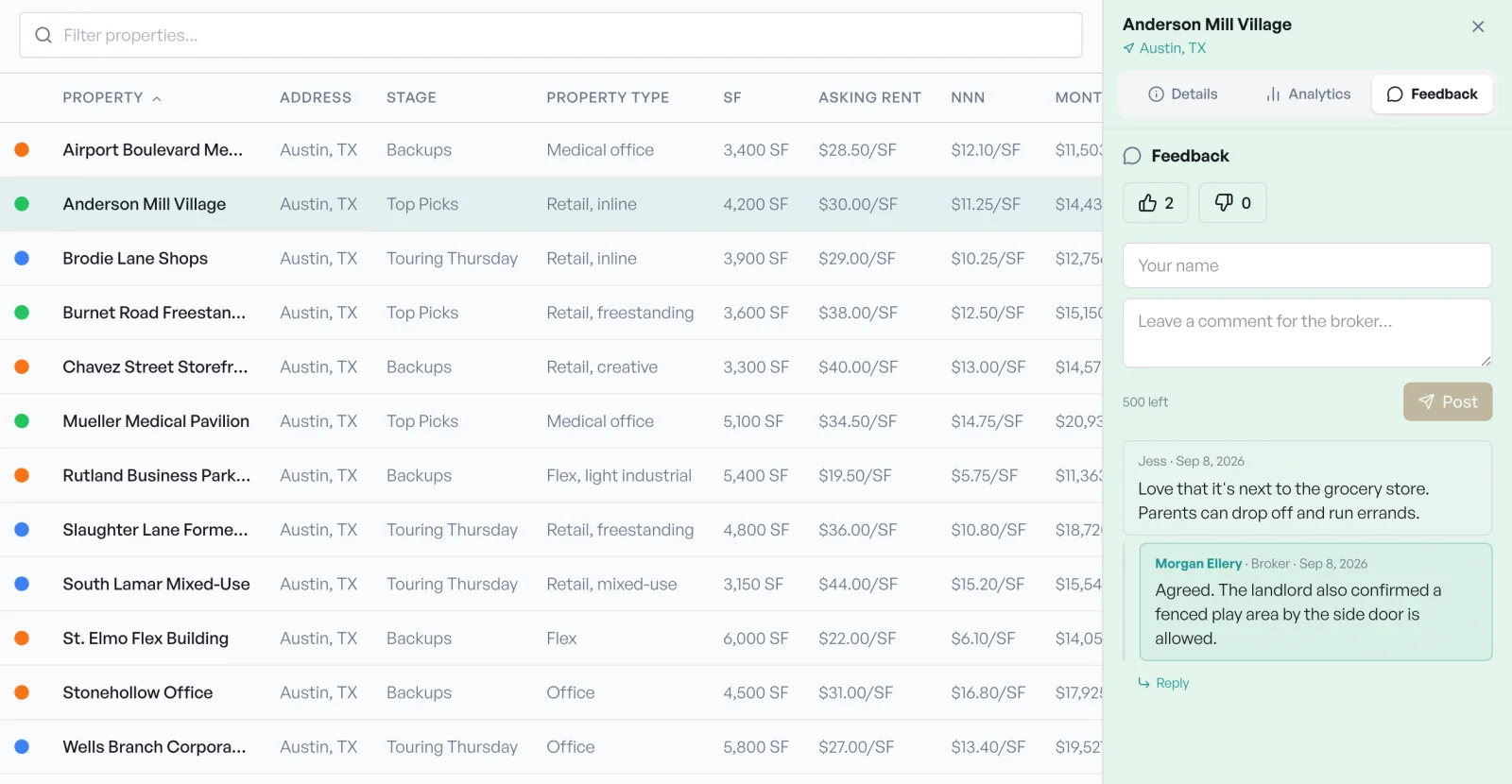
Switch to the list view to compare every site side by side by stage, property type, size, asking rent, and NNN.
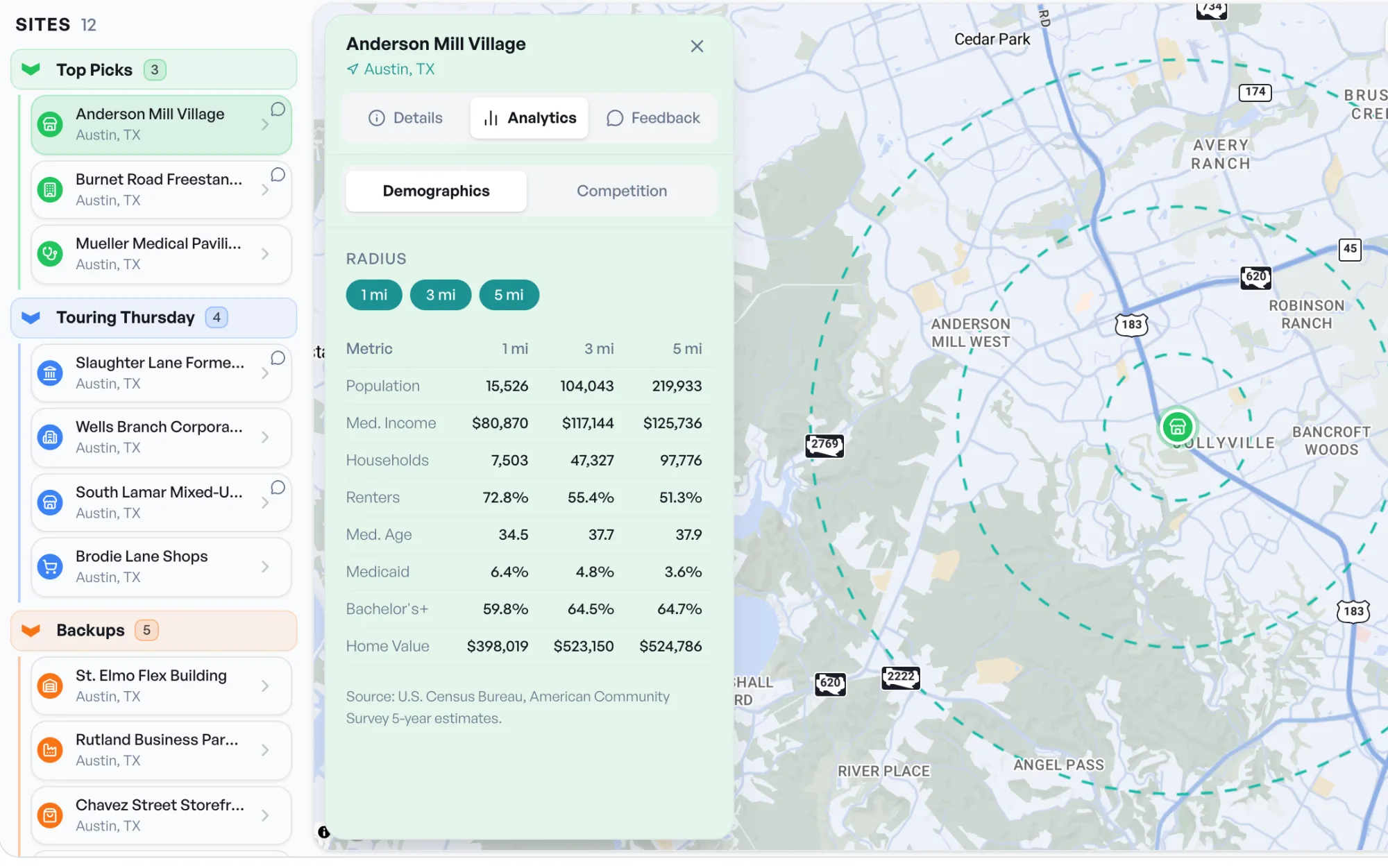
Open any site's Analytics tab to see the trade area in 1-, 3-, and 5-mile rings: population, median income, households, renters, median age, home values, and more. The Competition tab maps competing businesses in the same rings, so you can steer a client away from an oversaturated corner.
Learn more on the Demographics and Competition Tracker pages.
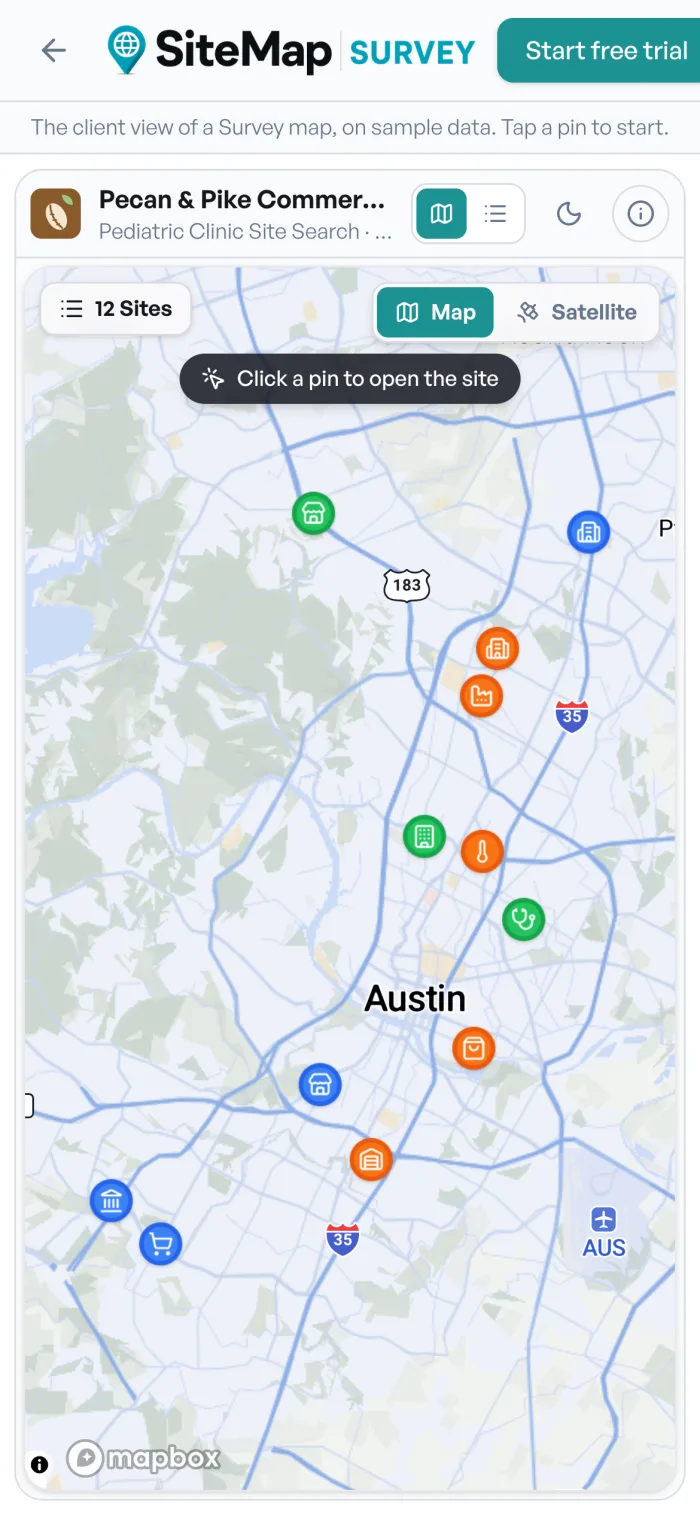
Click Share and send your client a single link. Your branding goes on it, so the survey looks like it came from your brokerage, not from a file-sharing app. The client doesn't need an account; they open the link on a phone or laptop and explore the map.
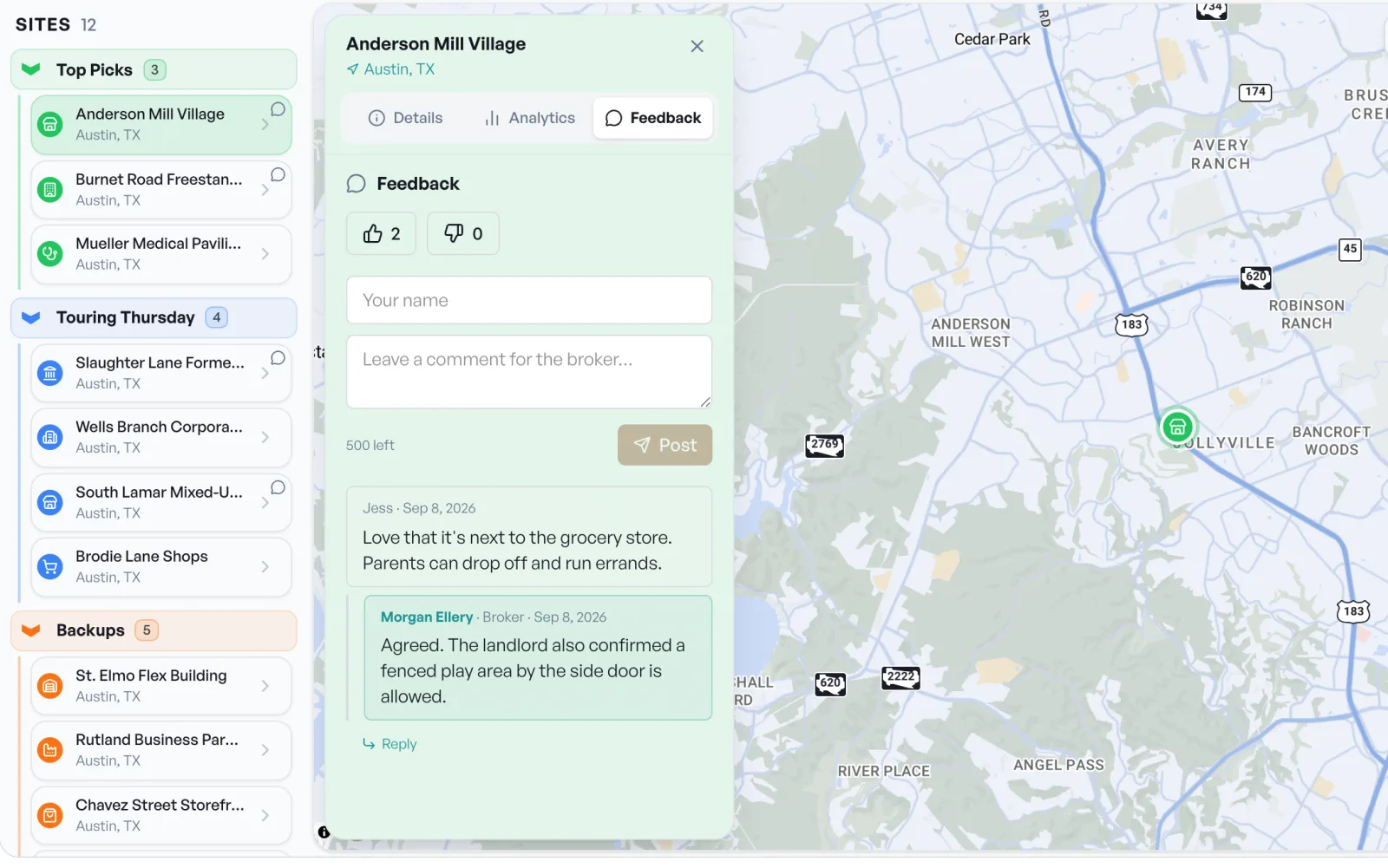
Clients can like or pass on each site and leave comments, and you can reply right in the thread. No more hunting through email chains to find out which sites they liked.
When the client picks the sites to see, click Route. Add the stops and click Optimize Route, and Survey puts them in the fastest driving order with arrival times and time at each stop. Generate Tour Sheet gives you a printable schedule.
Then click Tour Book for a branded, print-ready book with each property's flyer page, photos, specs, and floor plans, ready to email or hand across the table.
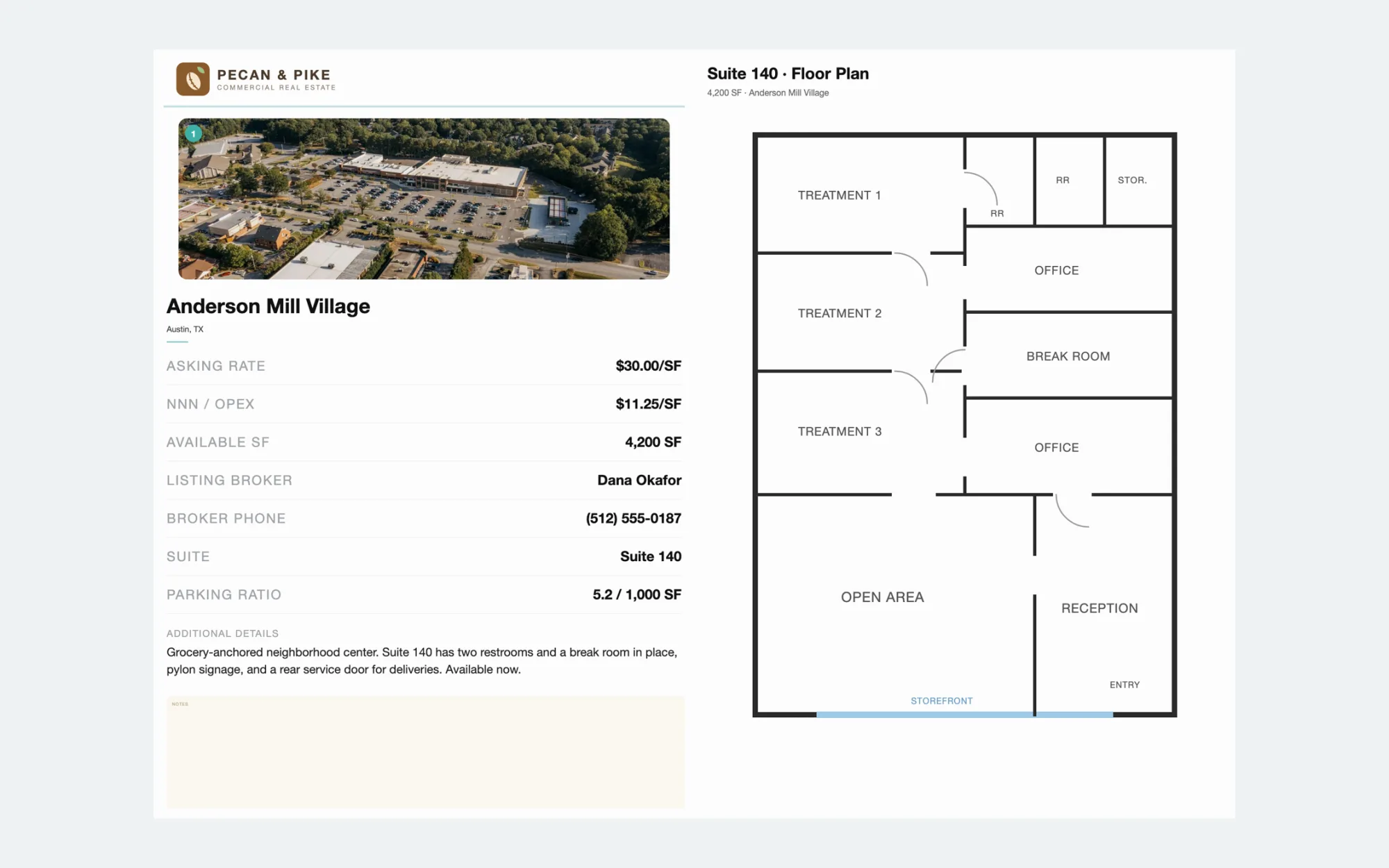
See Route Planner and Tour Books for details.
At minimum: each site's location, available square footage, asking rate, NNN or operating expenses, property type, availability, and the listing broker's contact. The best surveys also show where every site sits on a map, photos and floor plans, and trade-area data like demographics, so the client can compare options without calling you for each detail.
Send one link to an interactive map instead of attachments. In Survey, the client opens the link without creating an account, reviews every site on their phone or computer, and leaves likes and comments you can answer.
PDF flyers and images (JPEG, PNG, WebP), up to ten at a time. You can also paste listing text from an email, or import a spreadsheet (.xlsx or .csv) where each row is a site.
Yes. The client map works on phones, which also makes it useful during the tour itself.
Most brokers go from a stack of flyers to a shared client map in about fifteen minutes, compared with the hours it takes to download flyers, retype details, and assemble slides by hand.
Yes. Open the live client survey demo to see exactly what your client sees, using sample data.
Your value as a tenant rep is judgment: knowing which sites fit and why. The flyers, the retyping, and the Drive folders are just overhead. Hand that part to Survey and send your client something they'll actually use.
For more on what makes a survey land with clients, read How to build a market survey your client will actually read. Ready to try it? Start a free trial of Survey or watch the 1-minute product video.
Start a 30-day free trial and run the whole playbook inside SiteMap.